




This guide explains how to purchase an ExpressVPN subscription directly in the mobile apps on iOS and Android.
If you purchase a subscription in the ExpressVPN iOS and Android apps, your subscription and billing are managed through your app store account, either the Apple App Store or Google Play.
Note that subscriptions purchased through the Apple App Store or Google Play Store are not covered by the ExpressVPN 30-day money-back guarantee. Refund requests for purchases submitted through the Apple App Store or Google Store are at the discretion of Apple or Google Play Support, and subscribers can request refunds through Apple Support or Google Play Support.
For full details on subscription terms, payment, and refunds, refer to our dedicated articles for iOS in-app purchases and Google Play subscriptions.
Jump to…
How to purchase an ExpressVPN subscription on iOS
How to purchase an ExpressVPN subscription on Android
How to set up your ExpressVPN account after in-app purchase
How to use your subscription on other ExpressVPN apps and services
How to purchase an ExpressVPN subscription on iOS
There are different ways to purchase an ExpressVPN subscription on iOS depending on your location.
If you’re in the U.S., you can choose between purchasing a subscription via Web Exclusive Offers or through the App Store. If you’re outside the U.S., you can purchase a subscription through the App Store only.
1. Download the ExpressVPN iOS app
Before you subscribe, you first need to download the ExpressVPN iOS app.
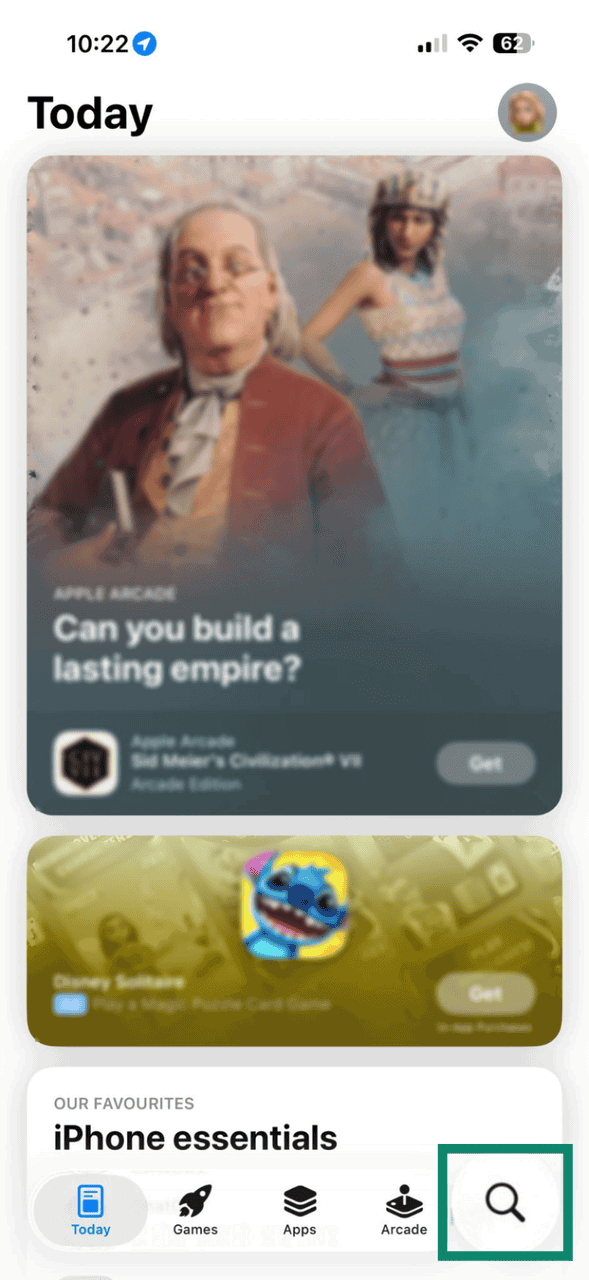
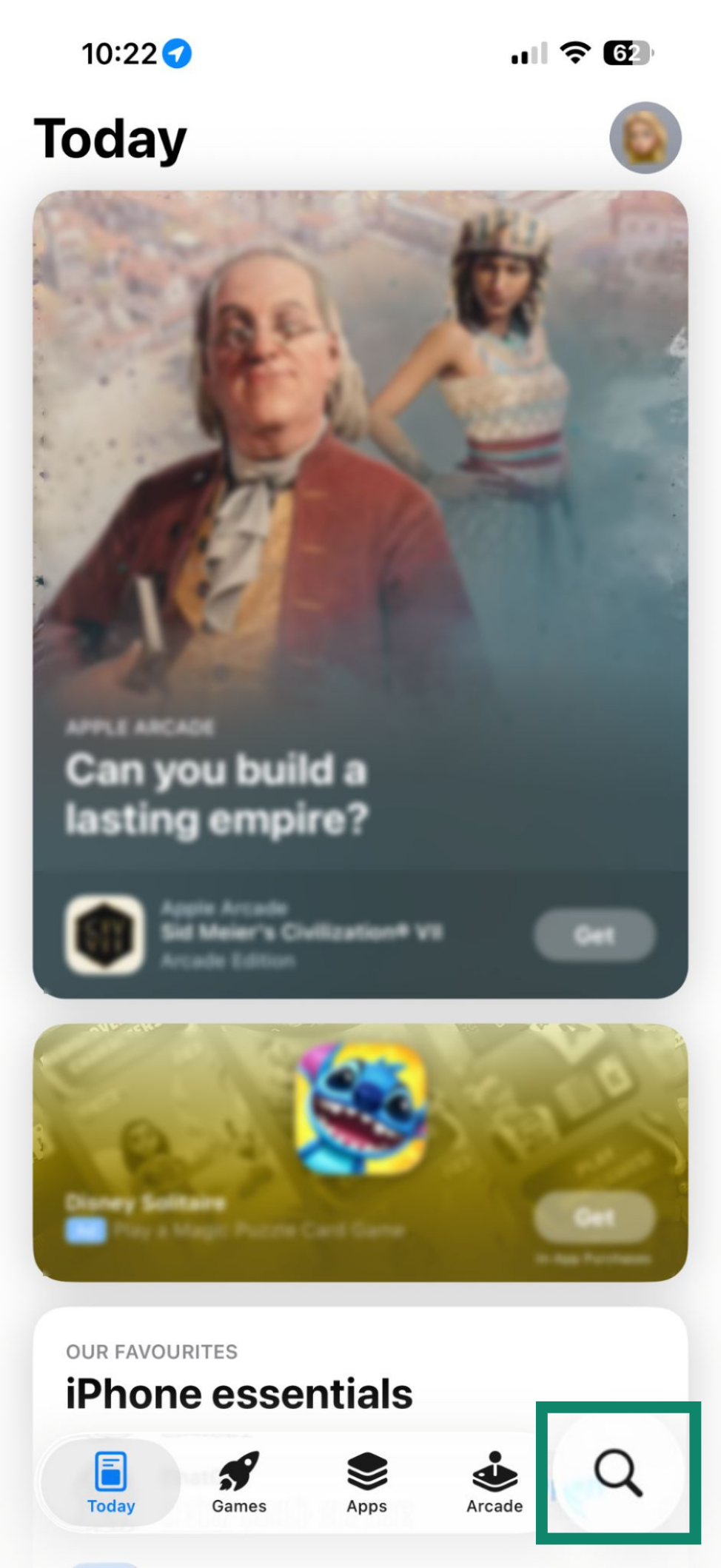
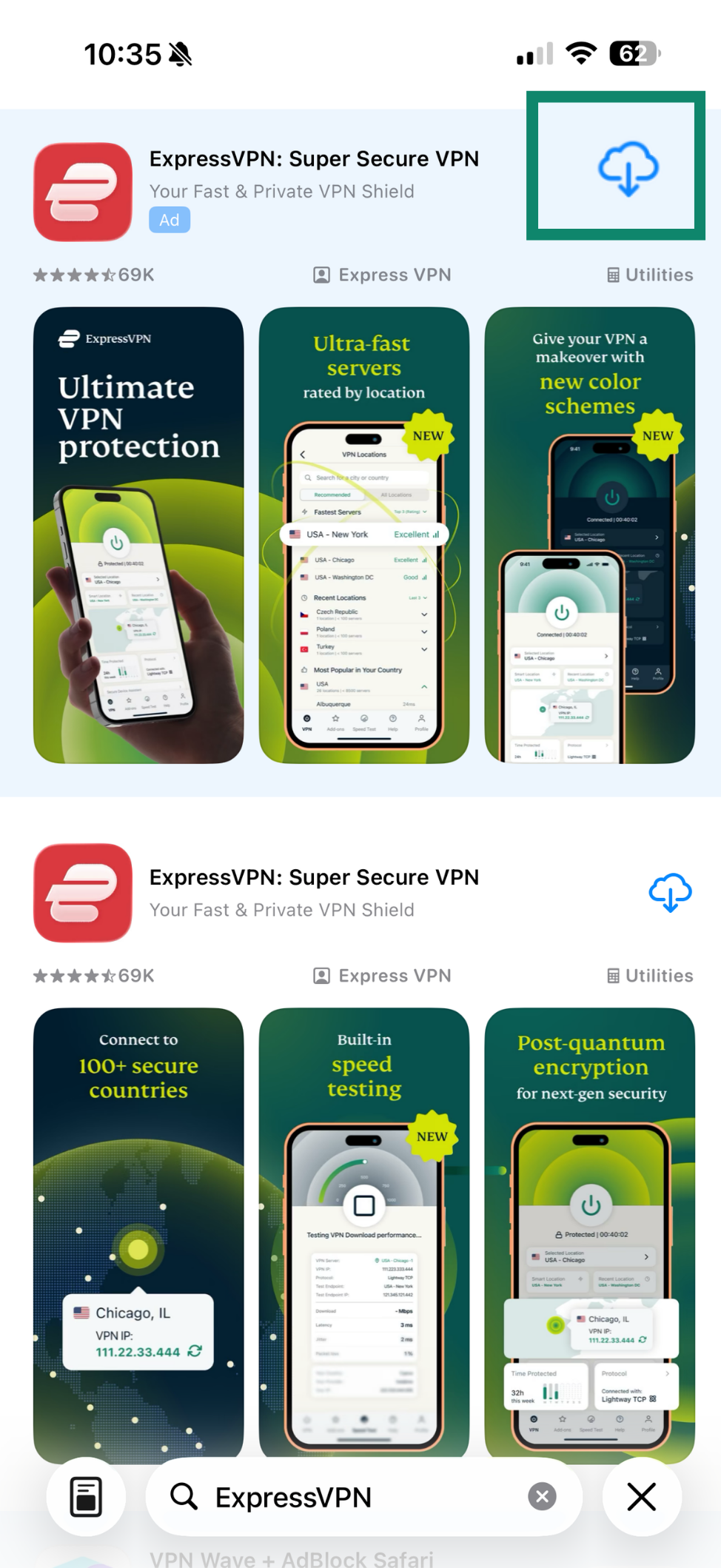
- Open the App Store on your iOS device, tap Search, and search for “ExpressVPN.”

- Tap Get or the Cloud icon.
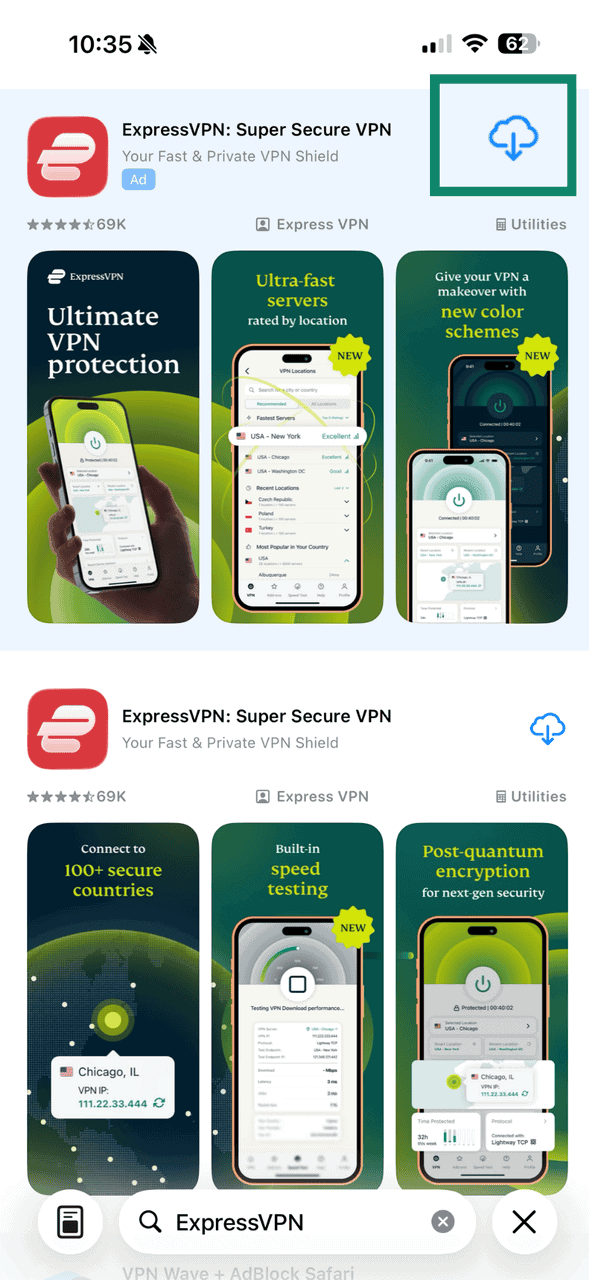
- The ExpressVPN iOS app will be downloaded to your device.
2. Purchase ExpressVPN on iOS (users in the U.S.)
If you’re outside the U.S., skip to the instructions for users outside the U.S.
Users in the U.S. have two options for purchasing a subscription on iOS: Web Exclusive Offers and App Store offers. If you decide to subscribe via Web Exclusive Offer, you must set up your account after purchasing.
Purchase a Web Exclusive Offer
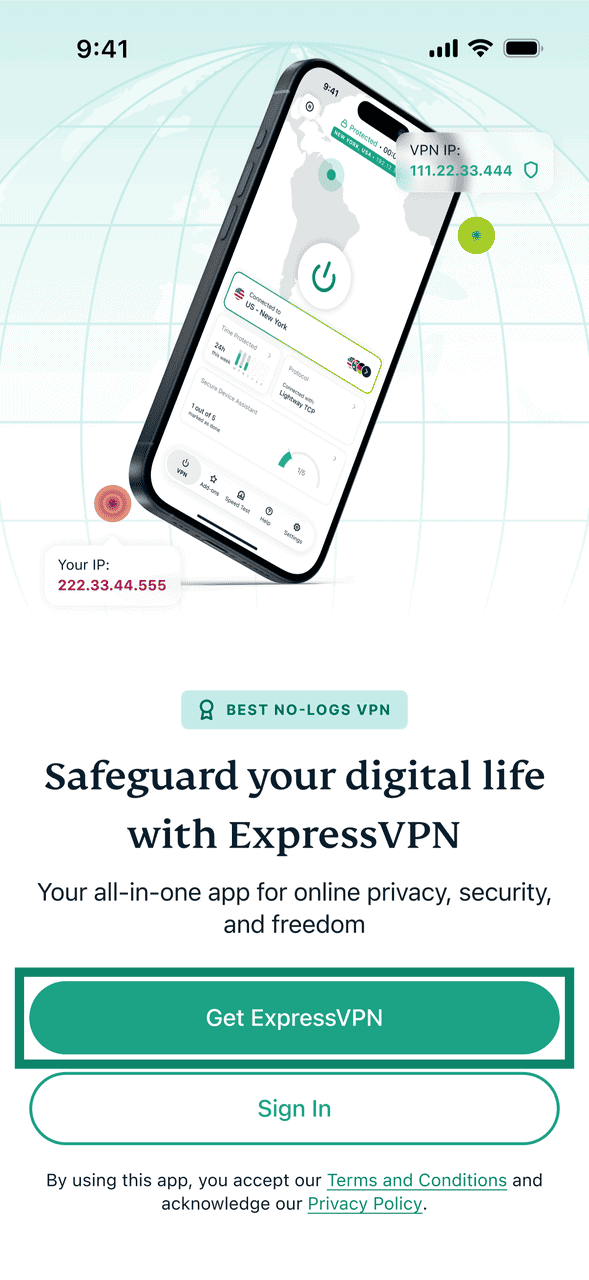
- Open the ExpressVPN app. Tap Get ExpressVPN.
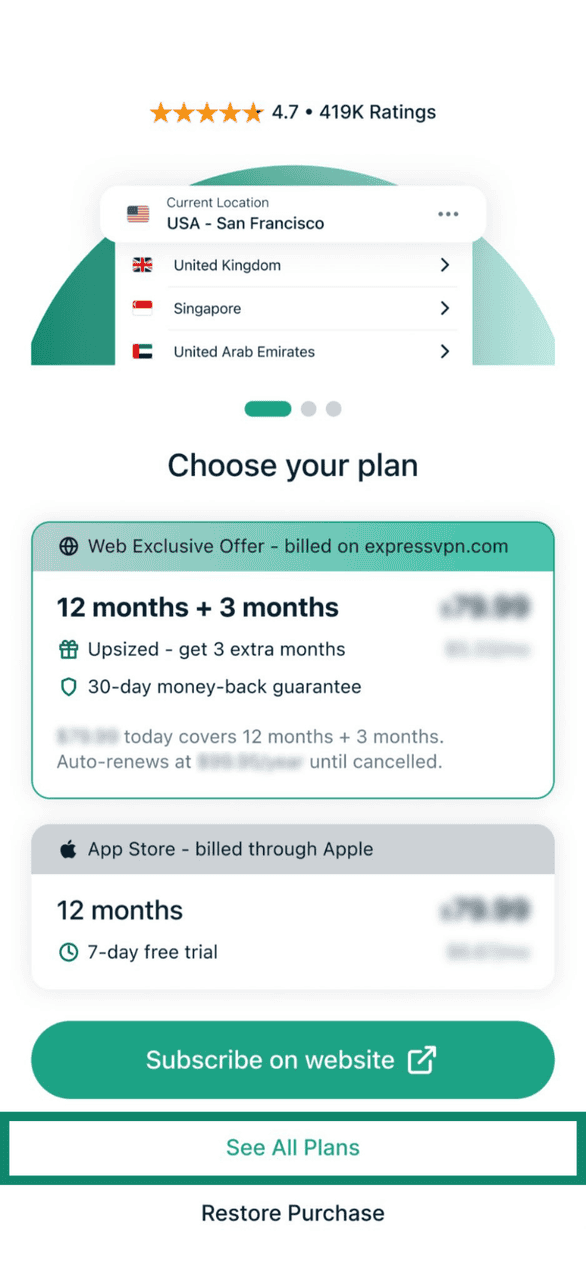
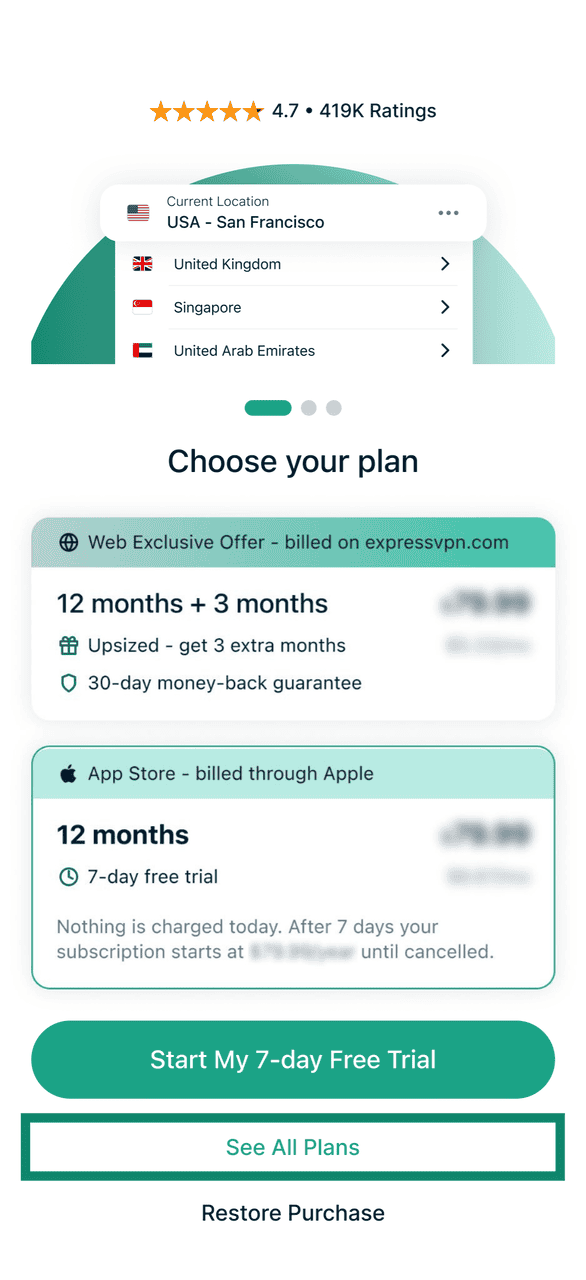
- Tap See All Plans.
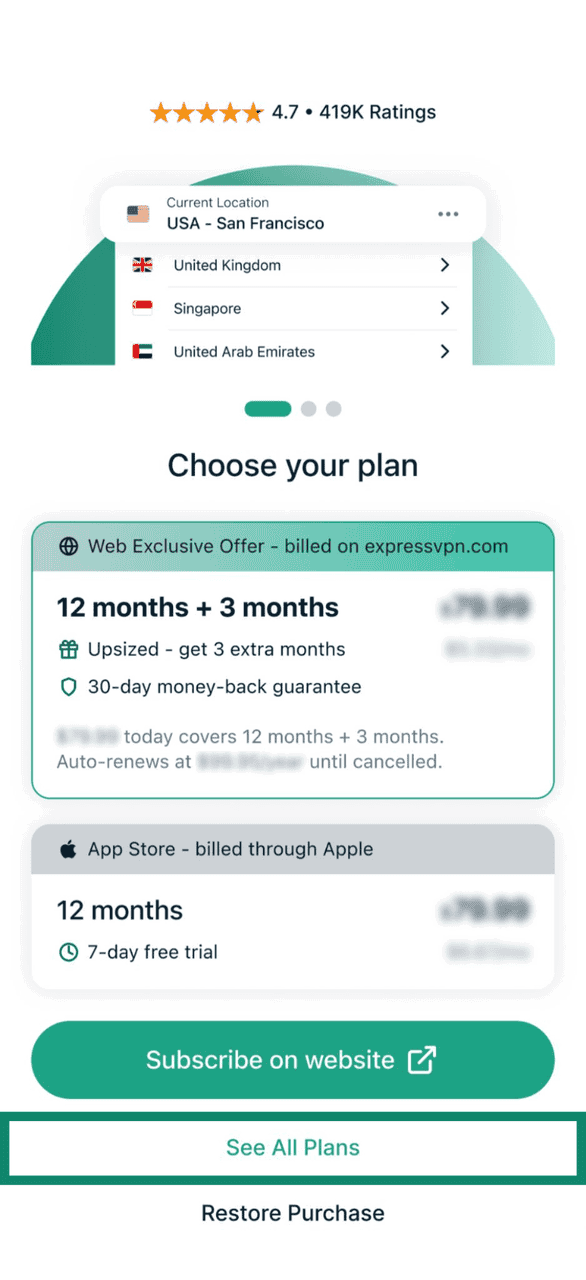

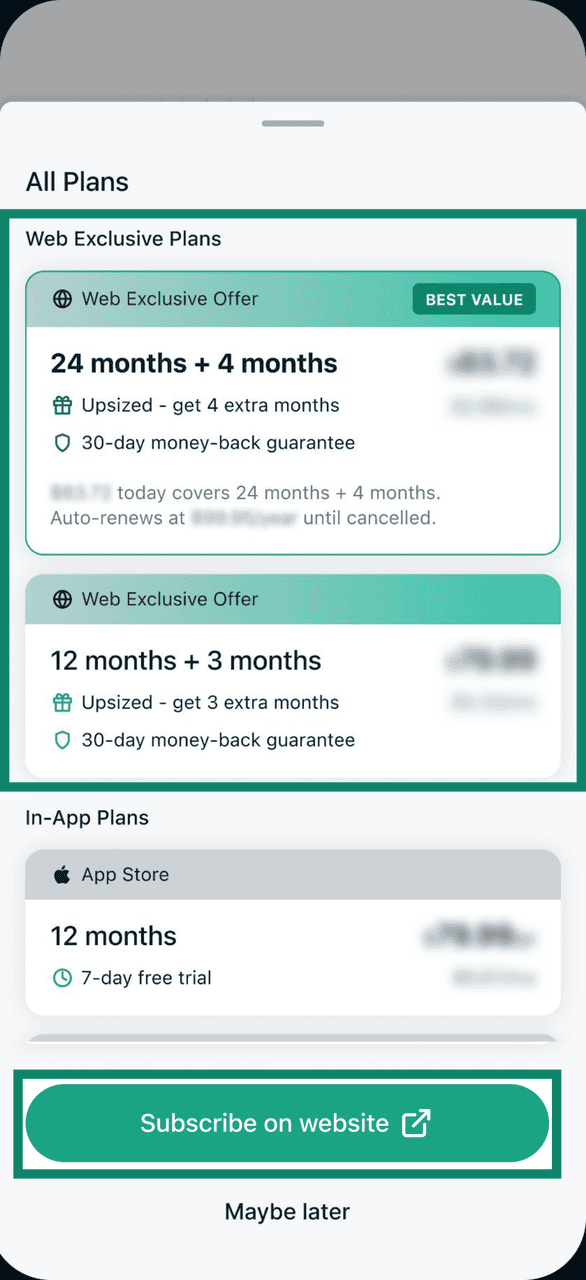
- Select the subscription you want under Web Exclusive Plans and tap Subscribe on website.
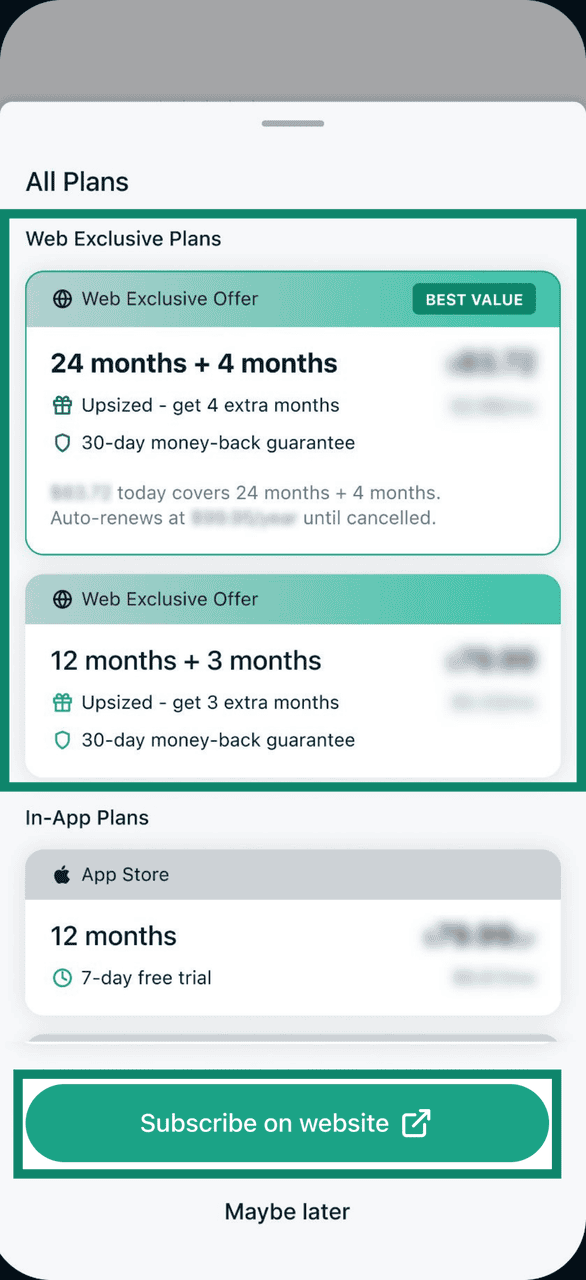
- You’ll be taken to the checkout page. From there, follow the on-screen instructions to finalize your purchase.
- You should receive an email to set up your account. Open the email and follow the instructions to complete your account setup.
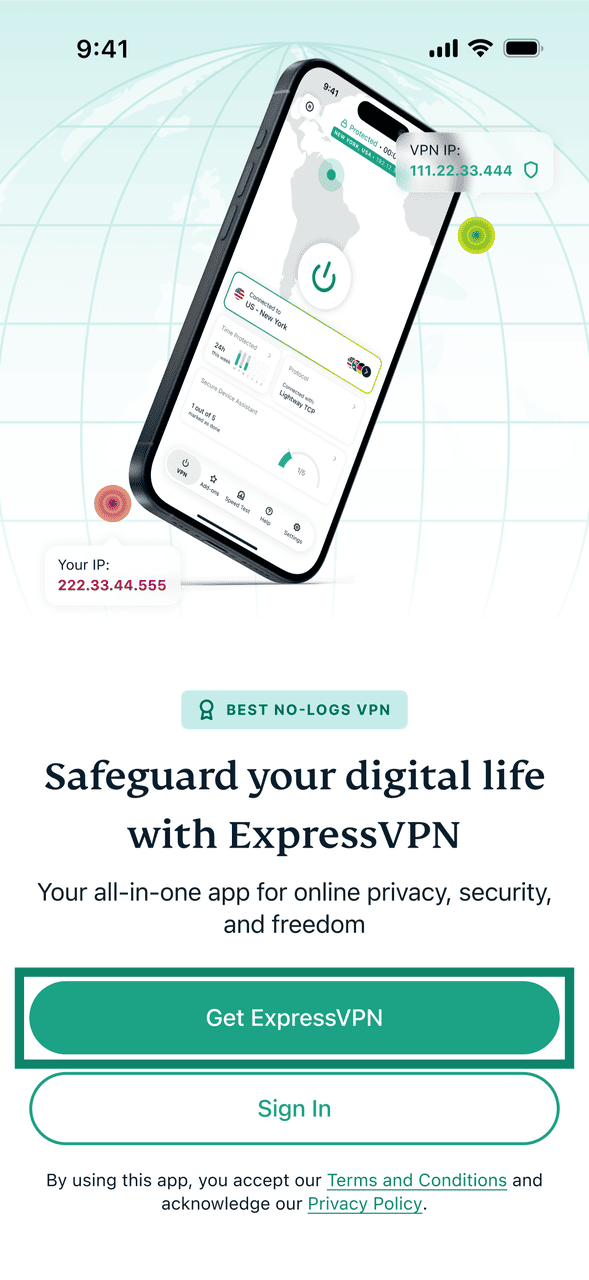
- Open the ExpressVPN app. Tap Get ExpressVPN.
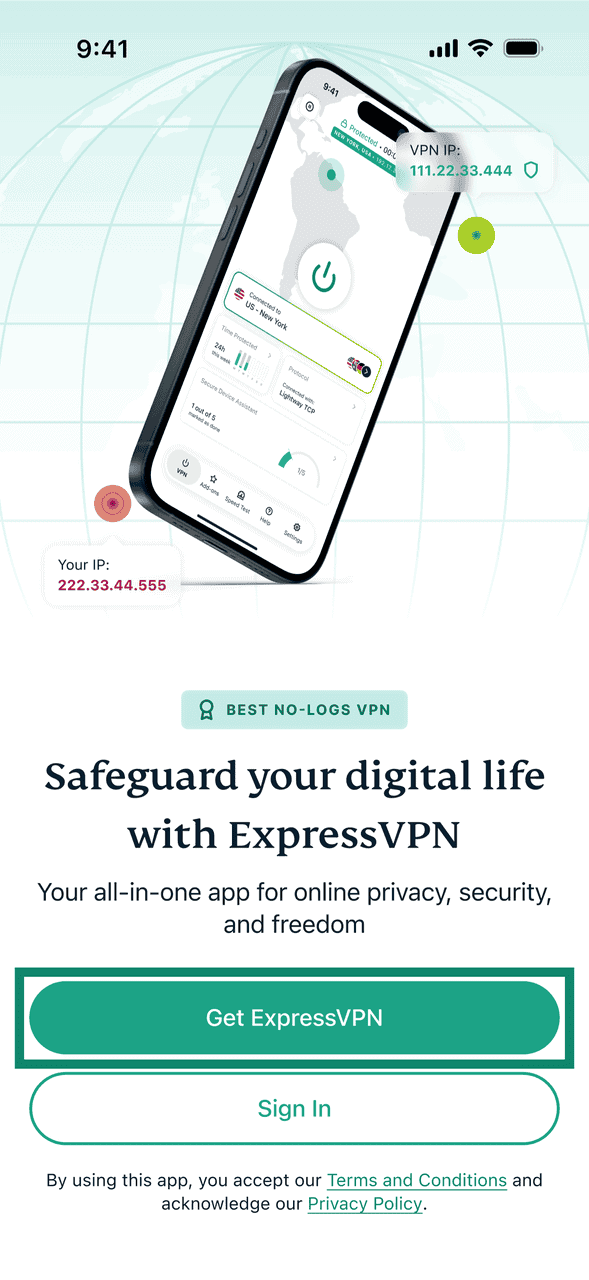
- Tap See All Plans.
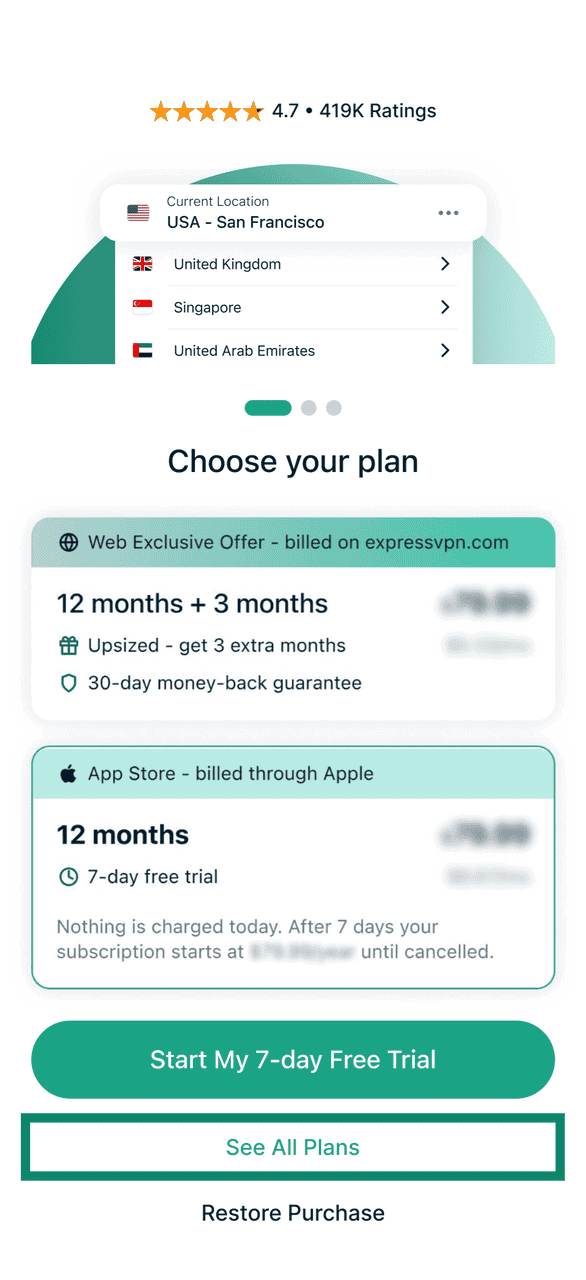
- Select the subscription you want under In-App Plans and tap Start My x-Day Free Trial or Subscribe [subscription price].
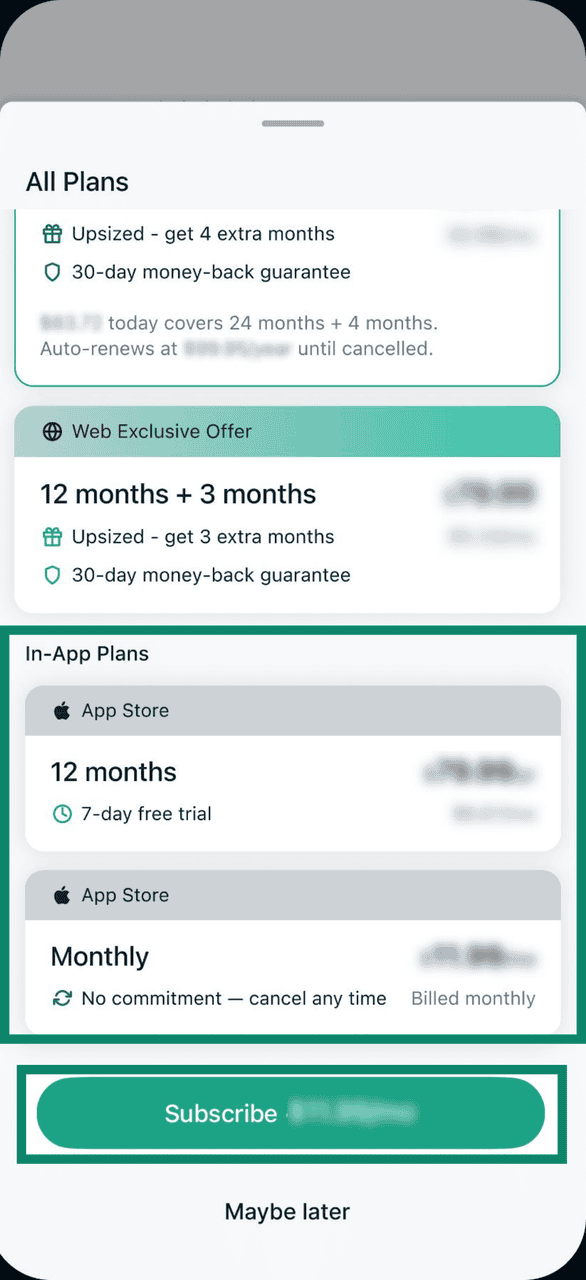
- Follow the on-screen instructions to confirm your subscription.
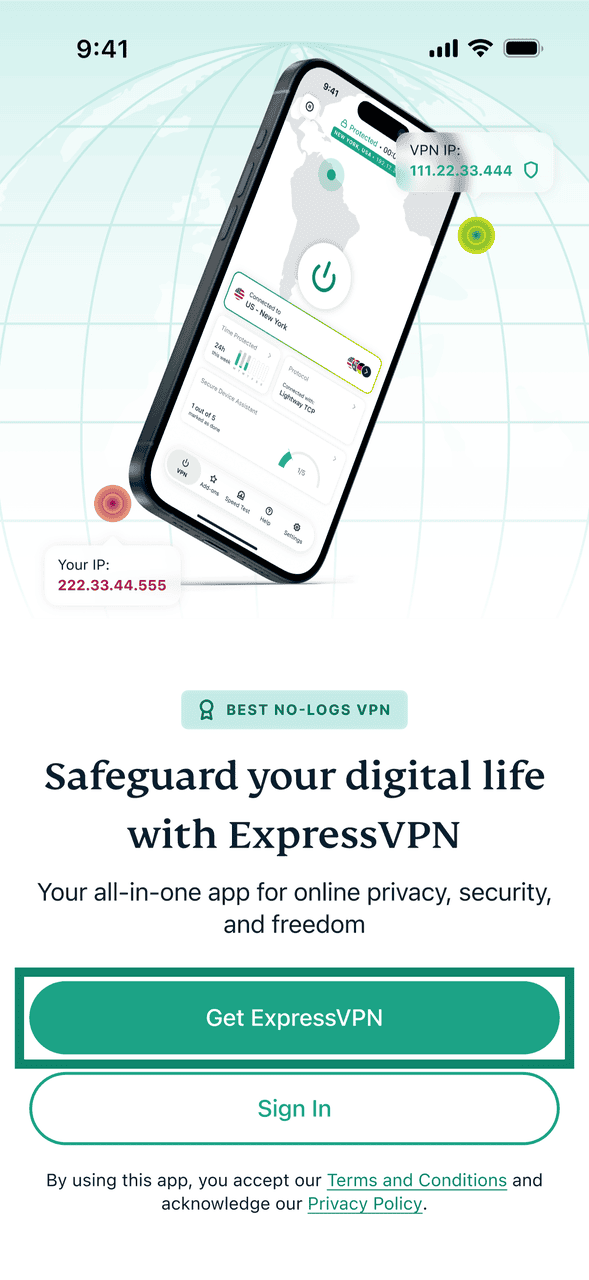
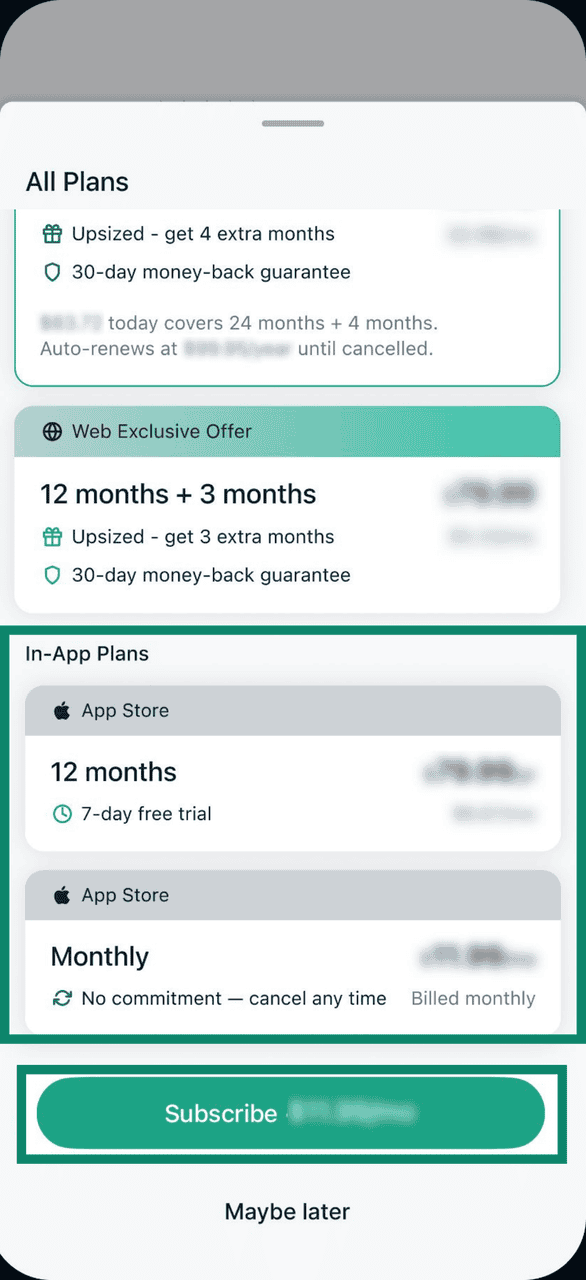
Once subscribed, you can follow the steps below to set up your account.
3. Purchase ExpressVPN on iOS (users outside the U.S.)
If you’re outside the U.S., you can subscribe to ExpressVPN via the App Store.
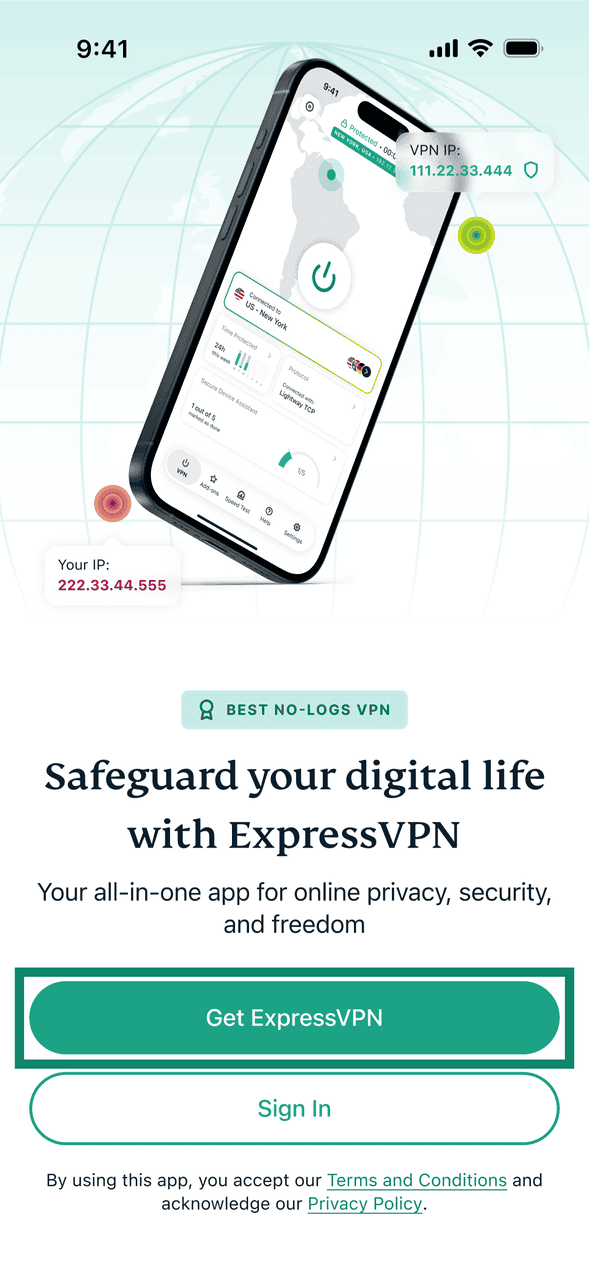
- Open the ExpressVPN app and tap Get ExpressVPN.
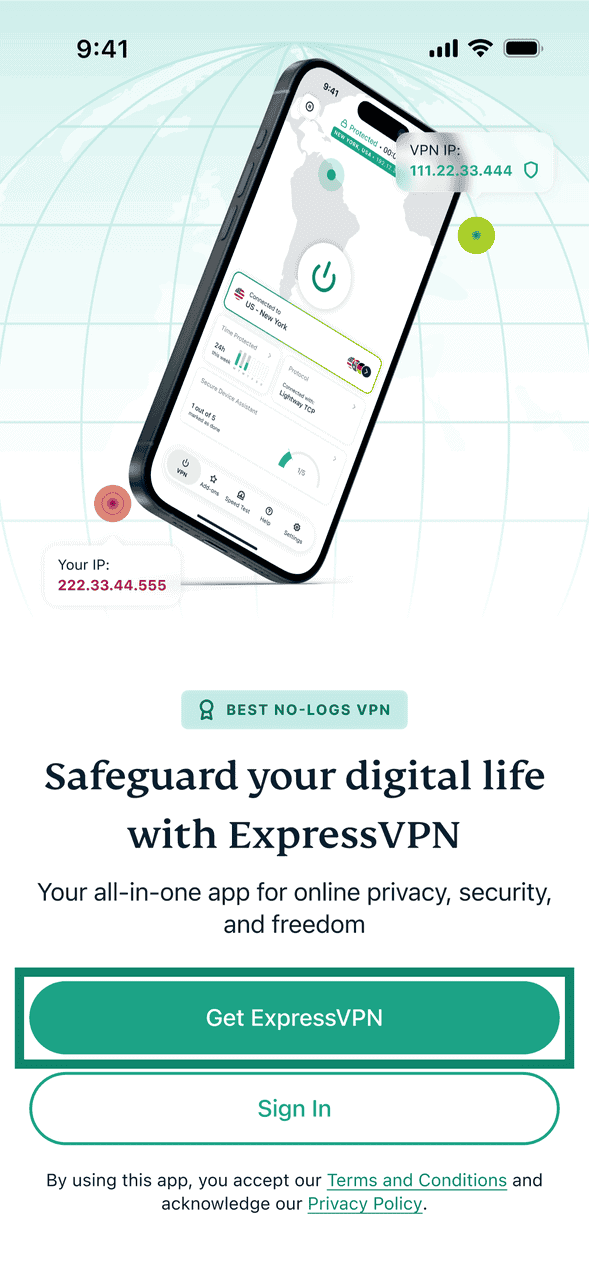
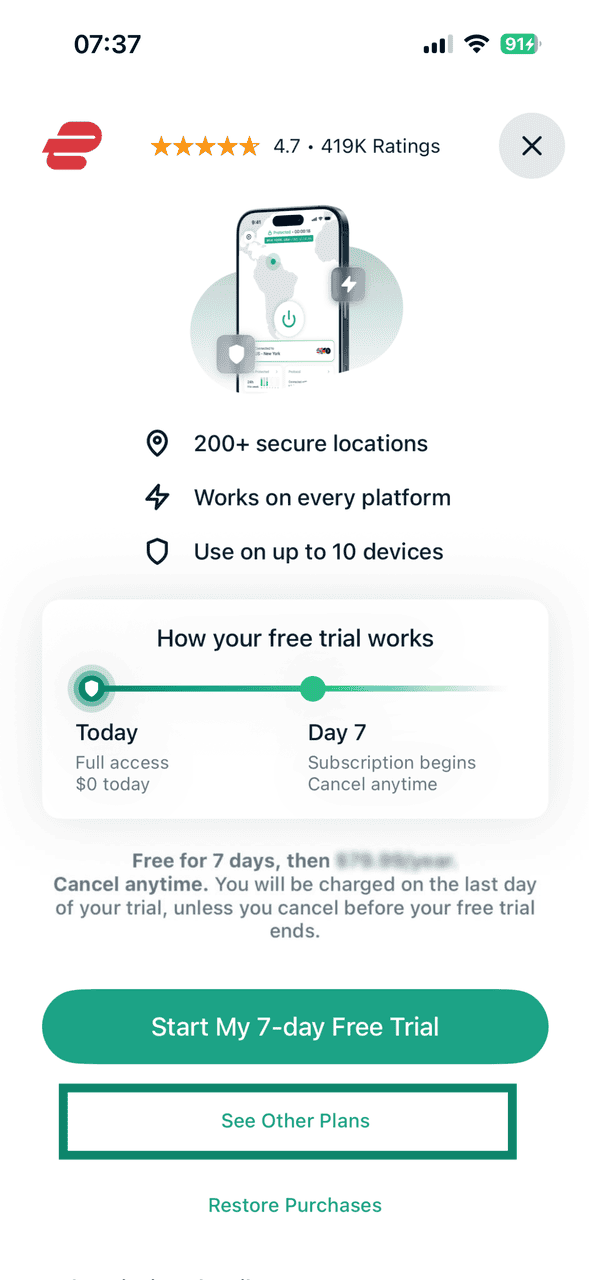
- Tap See Other Plans.
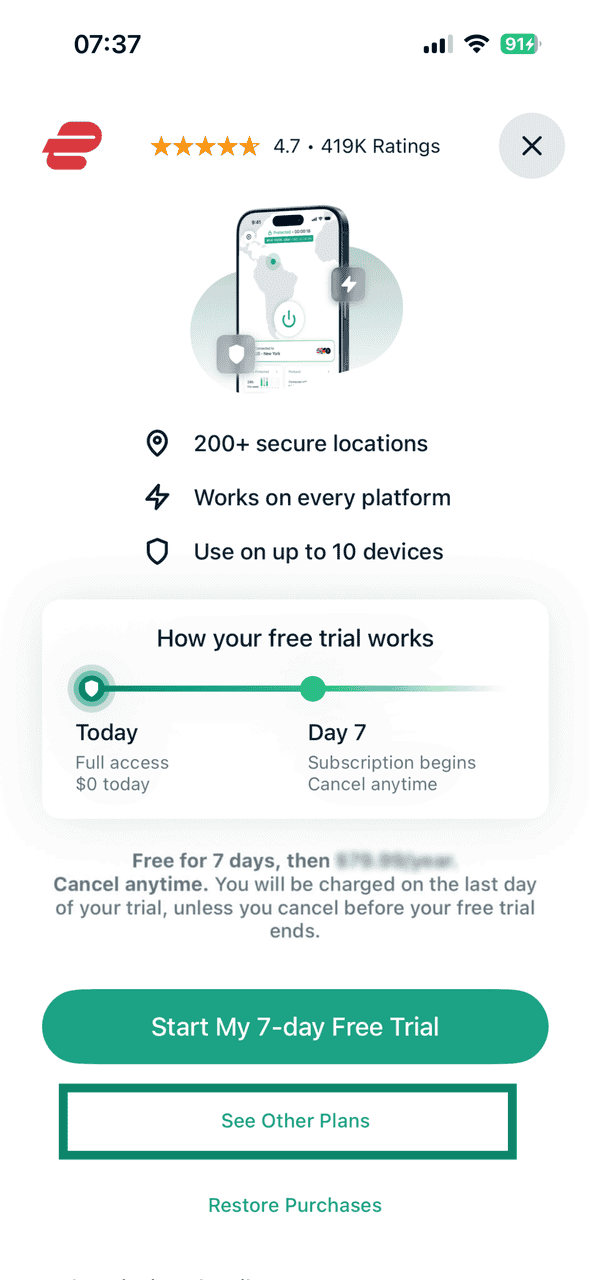
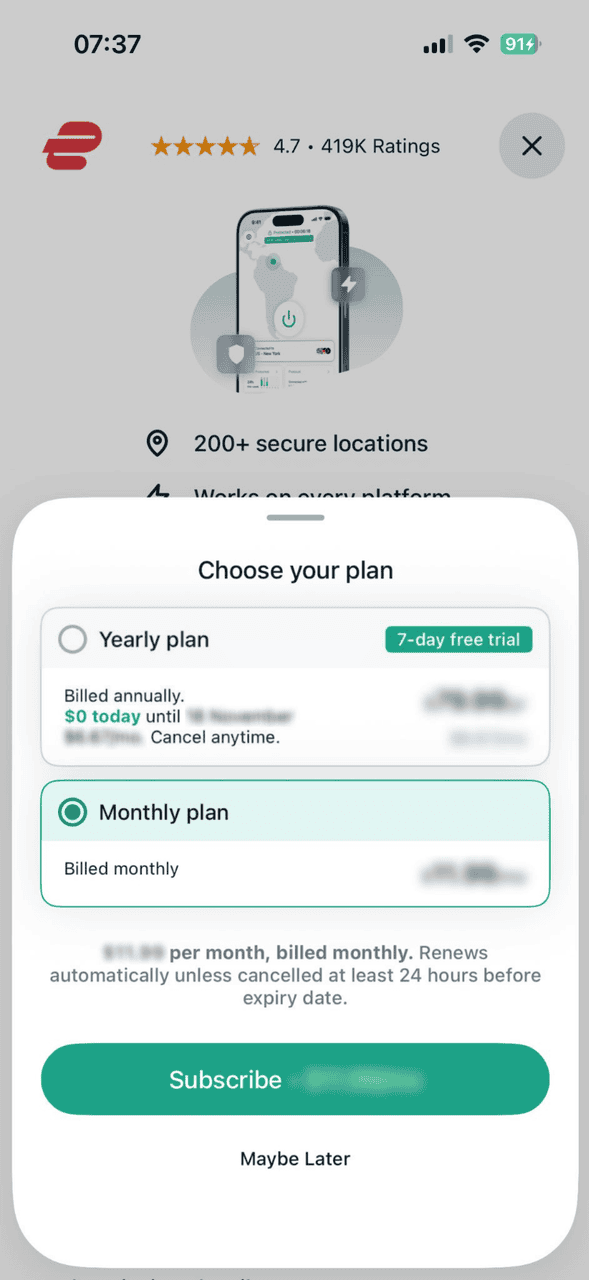
- Choose a subscription and tap Start My x-Day Free Trial or Subscribe [subscription price].
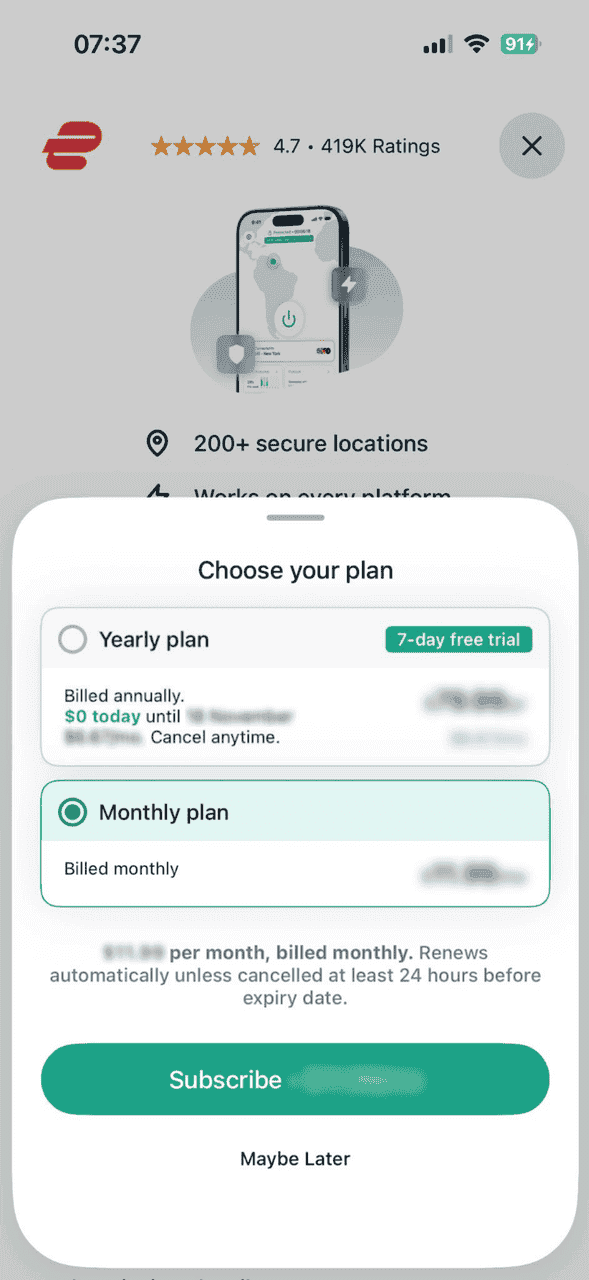
- Follow the on-screen instructions to confirm your subscription.
Once subscribed, you can follow the steps below to set up your account.
Need help? Contact the ExpressVPN Support Team for immediate assistance.
How to purchase an ExpressVPN subscription on Android
1. Download the ExpressVPN Android app
Before you subscribe, you’ll first need to download the ExpressVPN Android app.
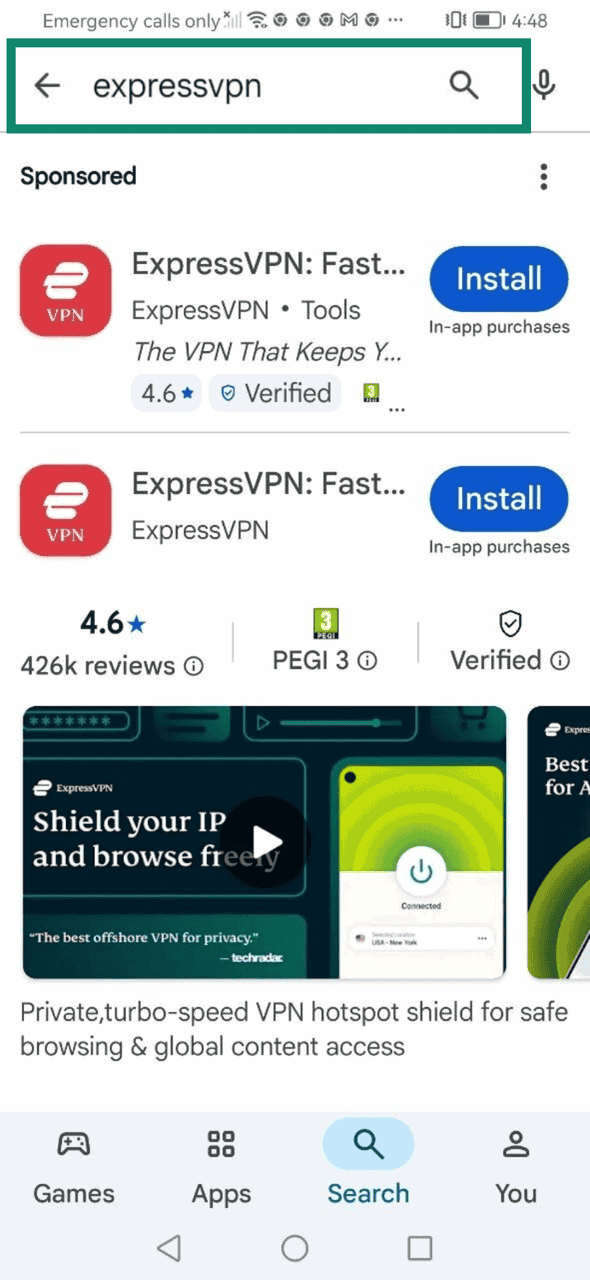
- Open Google Play on your Android device and search for “ExpressVPN.”

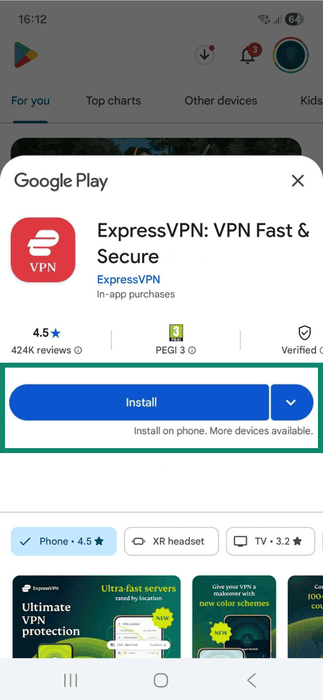
- Tap Install.
- The ExpressVPN Android app will be downloaded to your device.
2. Purchase ExpressVPN on Android
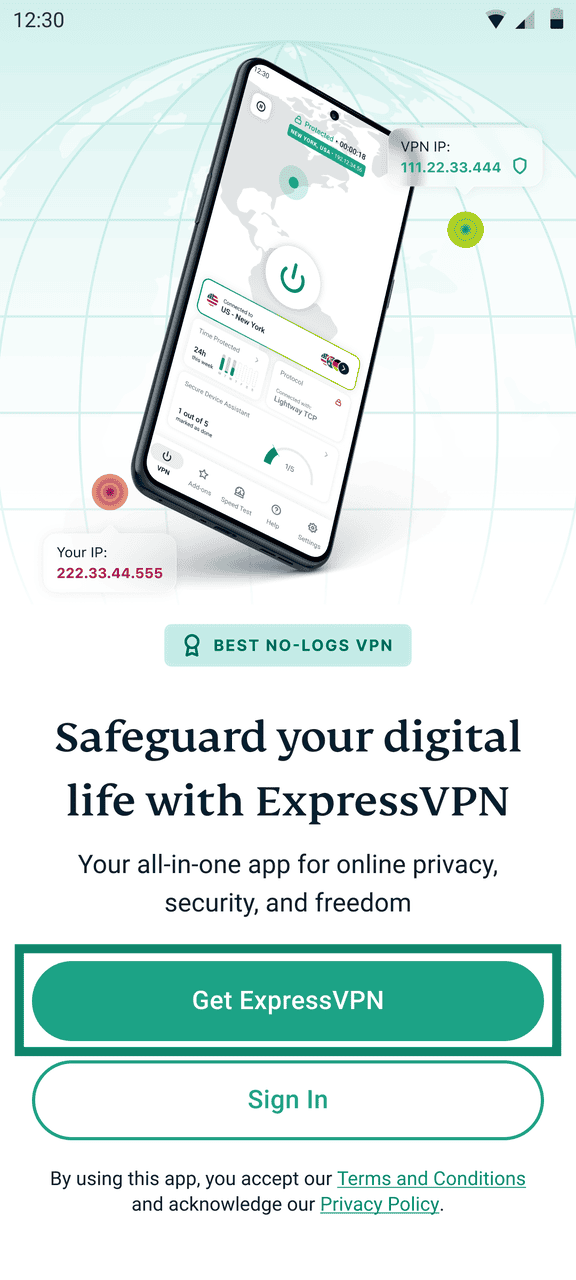
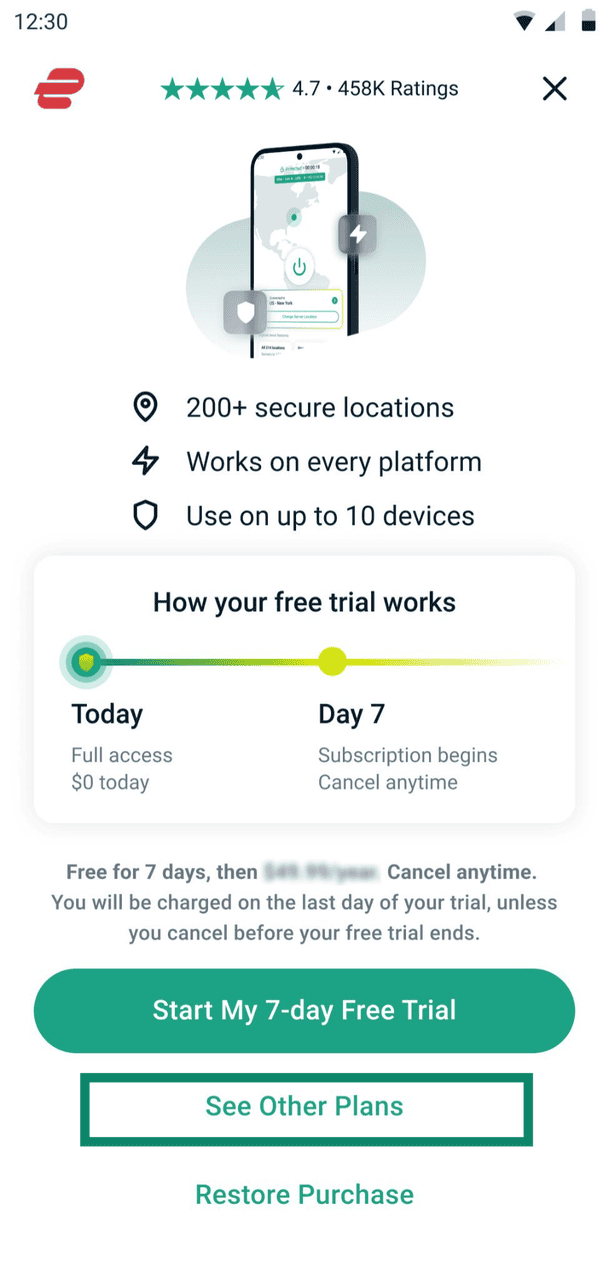
- Open the ExpressVPN app and tap Get ExpressVPN.
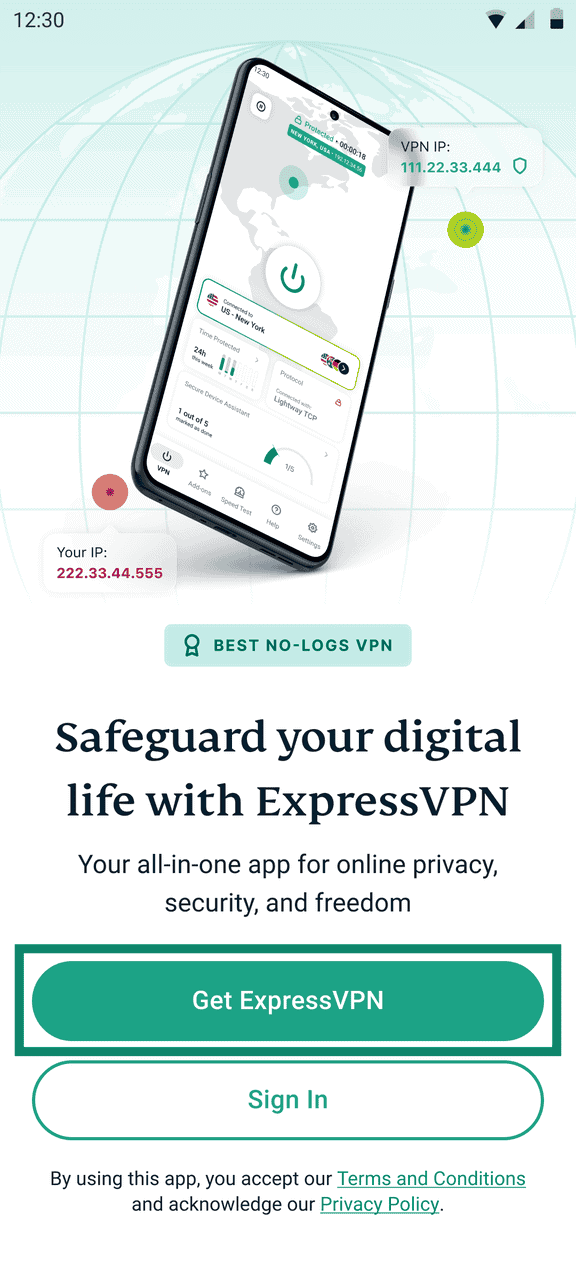

- Tap See Other Plans.
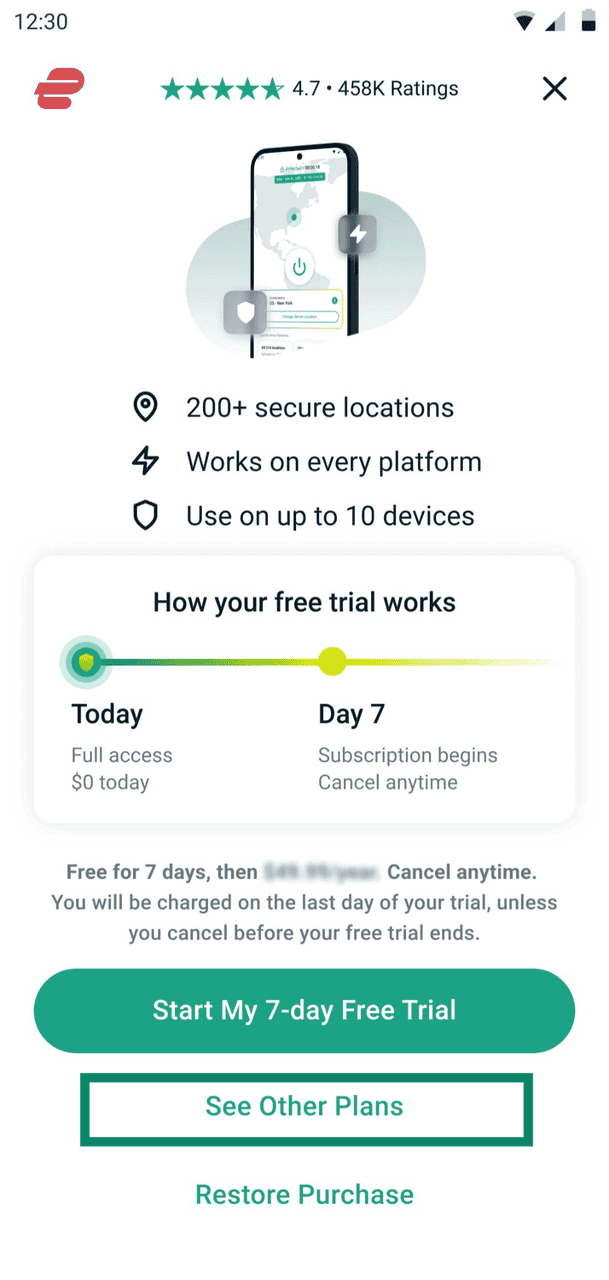

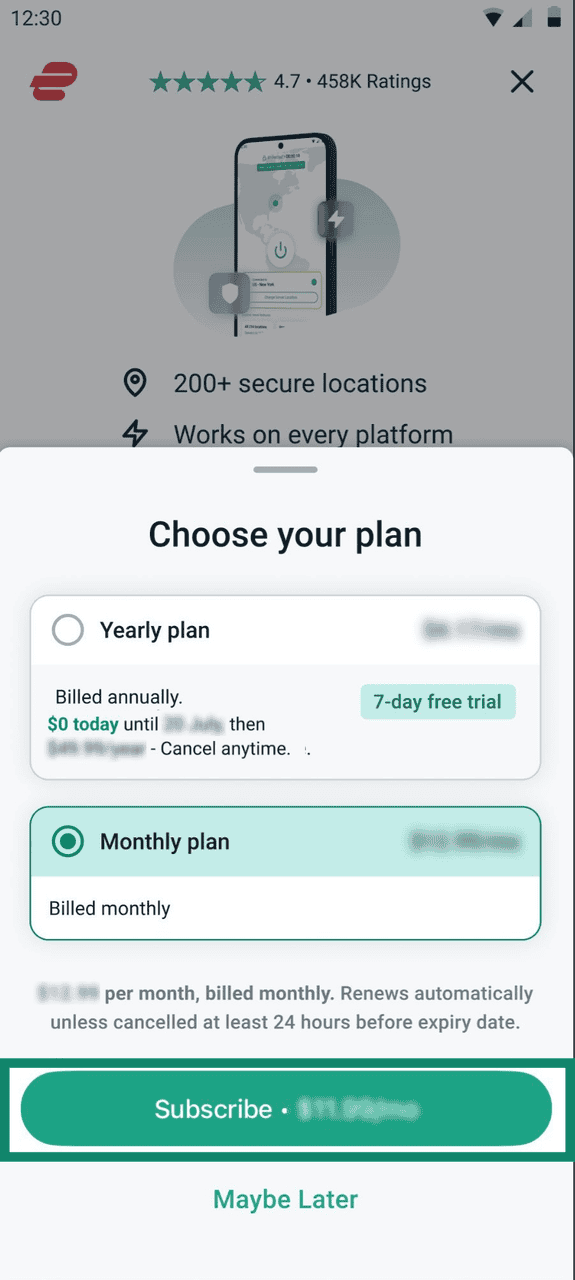
- Choose a subscription and tap Start My x-Day Free Trial or Subscribe [subscription price].
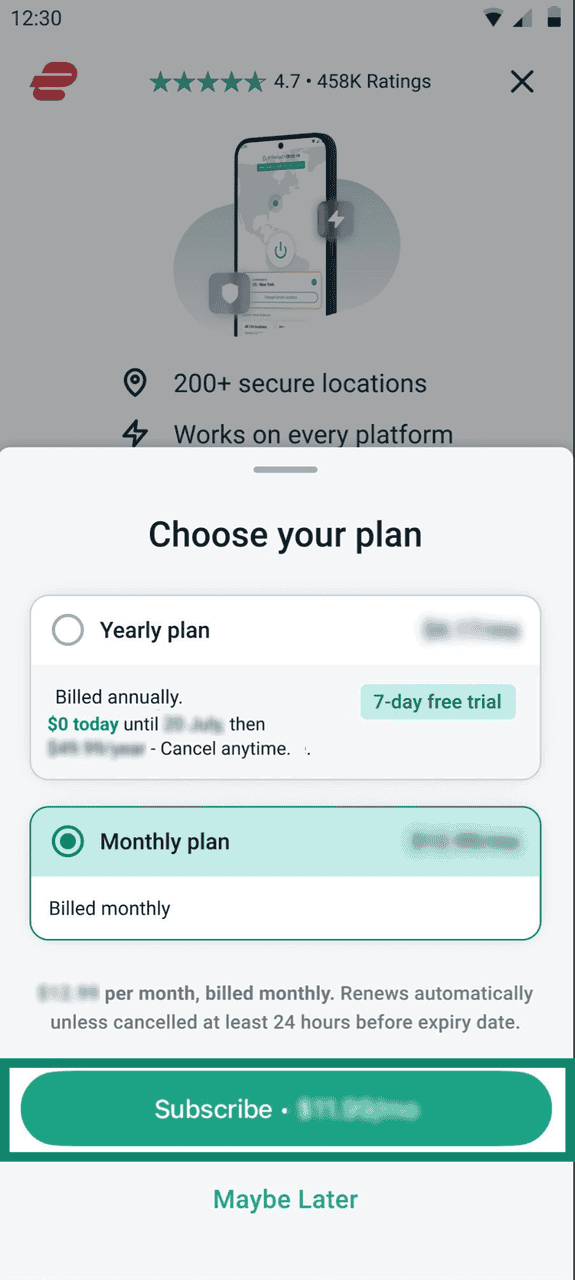
- Follow the on-screen instructions to confirm your subscription and finalize your purchase.
Once subscribed, you can follow the steps below to set up your account.
Need help? Contact the ExpressVPN Support Team for immediate assistance.
How to set up your ExpressVPN account after in-app purchase
If you purchased your subscription via your device’s app store, you have two options: set up your account right away or return and set it up later.
1. Set up your account during purchase (recommended)
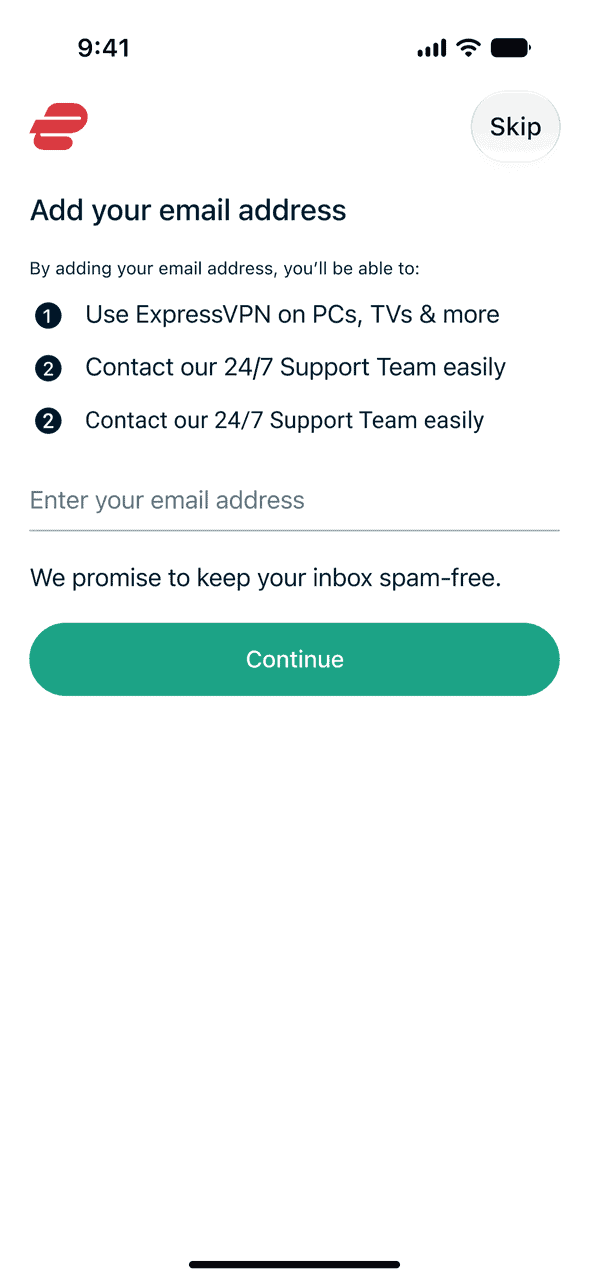
After you purchase your subscription, you’ll see a prompt to set up your ExpressVPN account. It’s worthwhile completing your account setup immediately after purchasing so you can start using your subscription across your devices.
- Enter your email address, then tap Continue. You’ll receive a confirmation email. Follow the instructions in the email to complete your account setup.
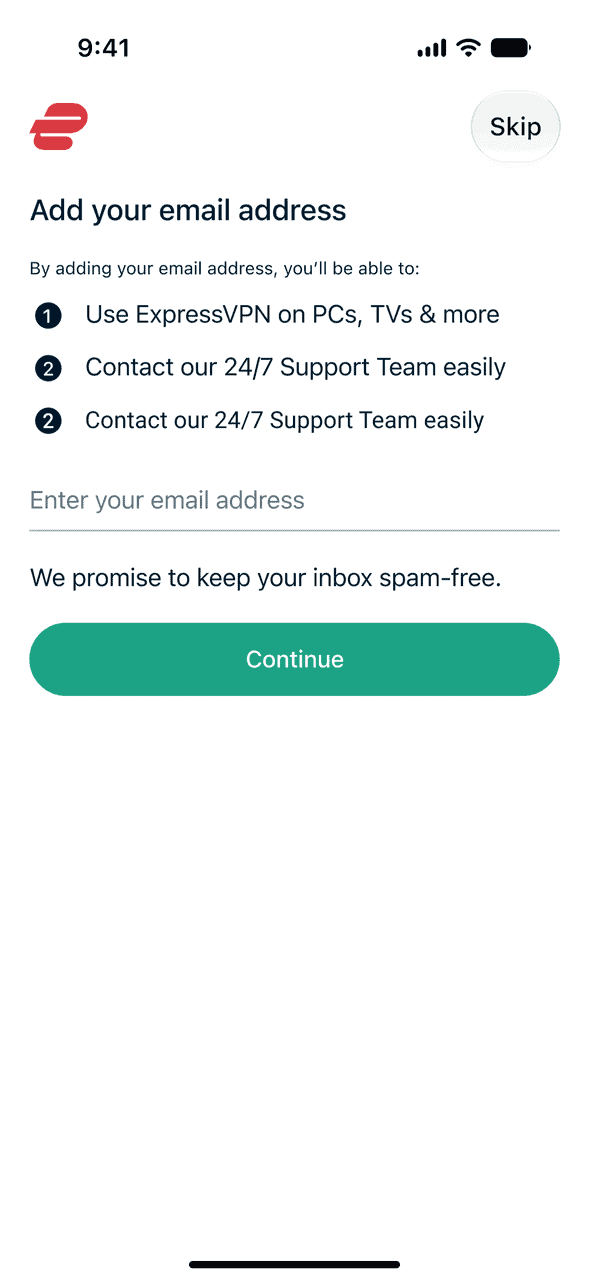
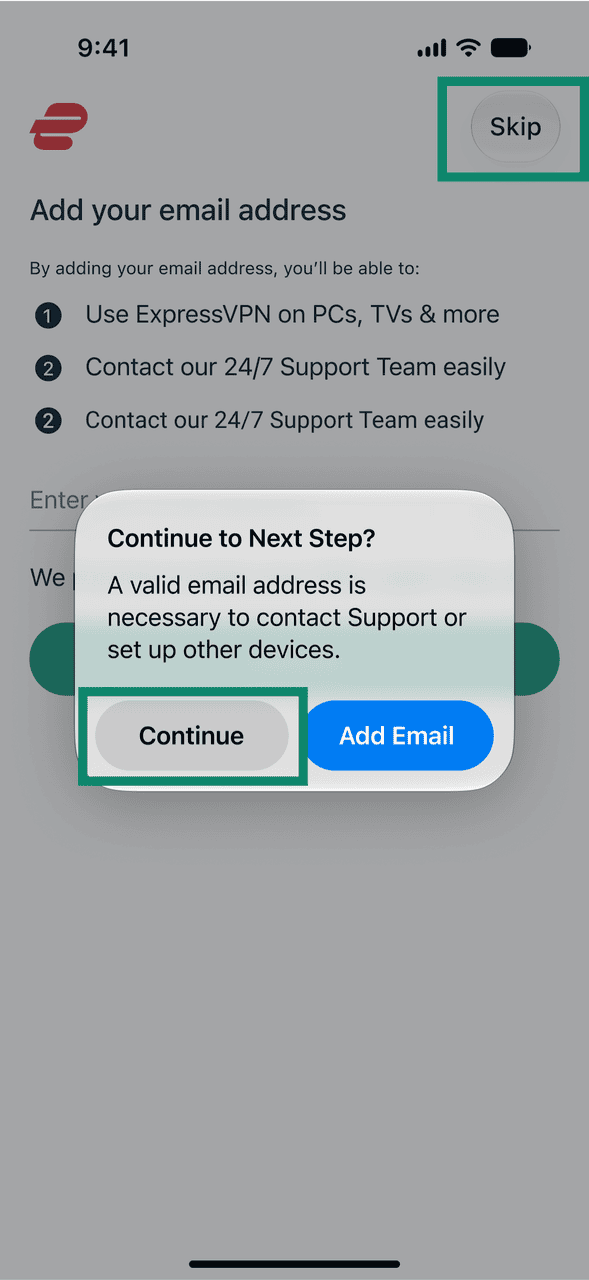
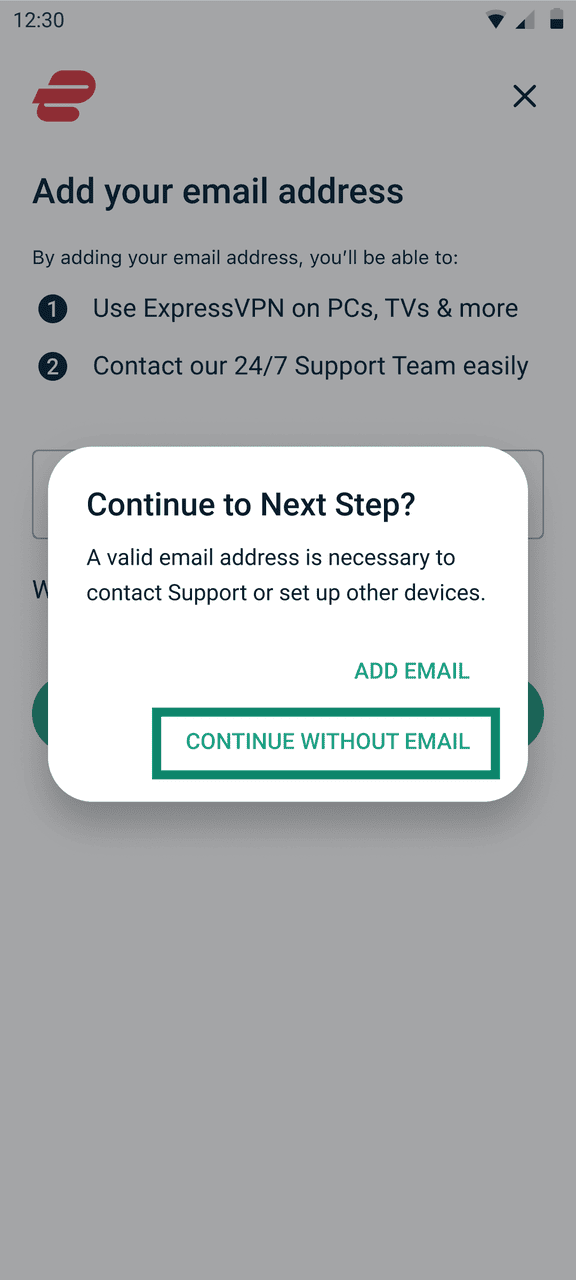
- You can also add your email address later. Tap Skip > Continue Without Email.
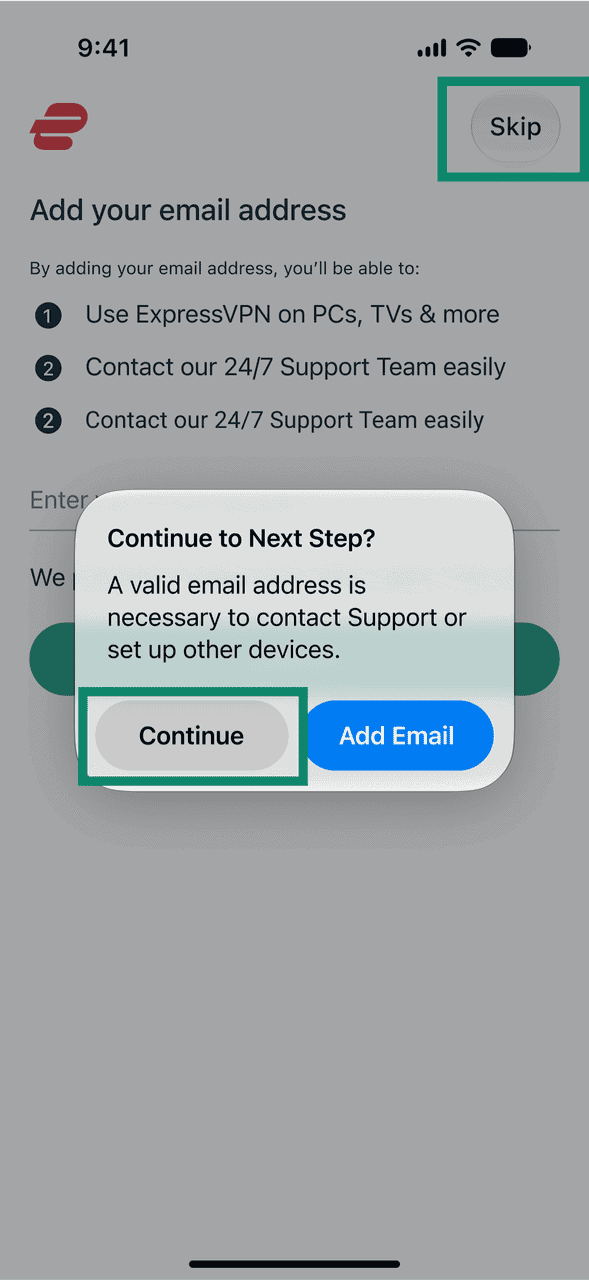
- You can also add your email address later. Tap Skip > Continue Without Email.
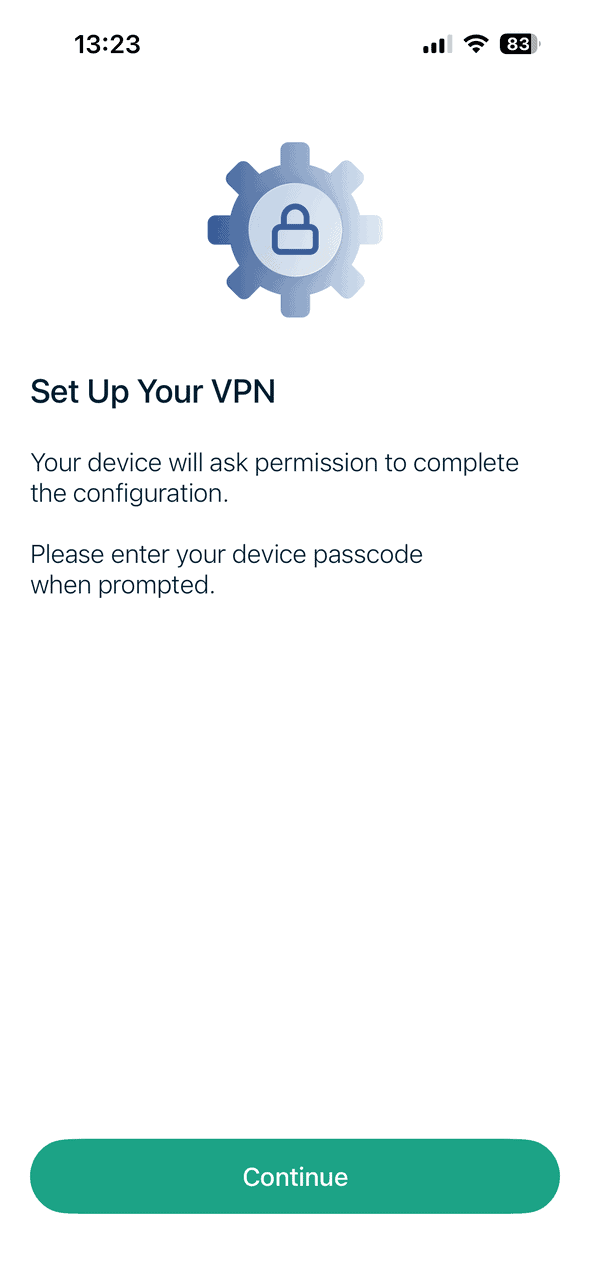
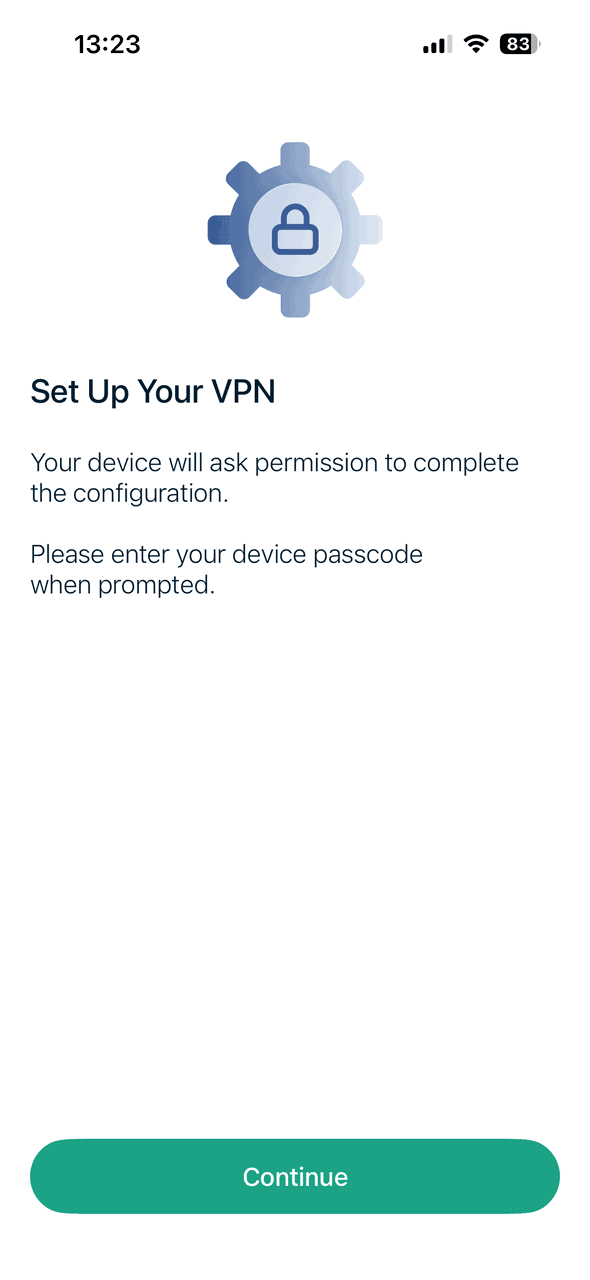
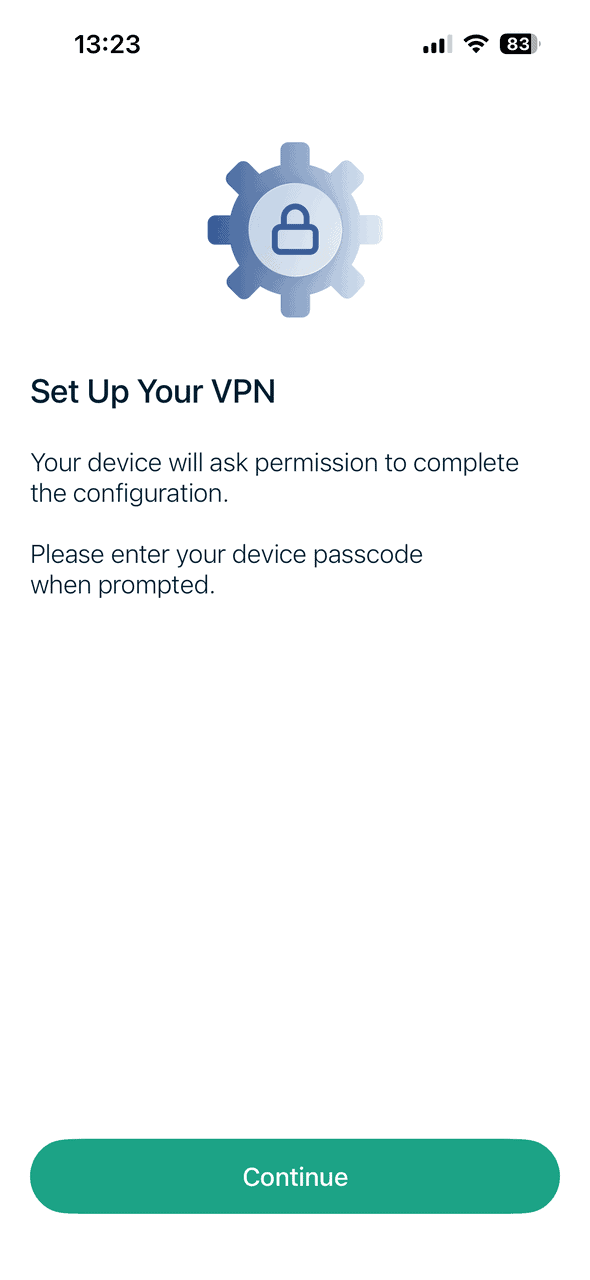
- Back in the app, you’ll see the device configuration screen. Tap Continue and follow the on-screen prompts to finish setting up the app.
For next steps on getting started with ExpressVPN, read our guide on setting up and using the ExpressVPN iOS app.
- After the confirmation screen, enter your email address and tap Continue. You’ll receive a confirmation email. Follow the instructions in the email to complete your account setup.
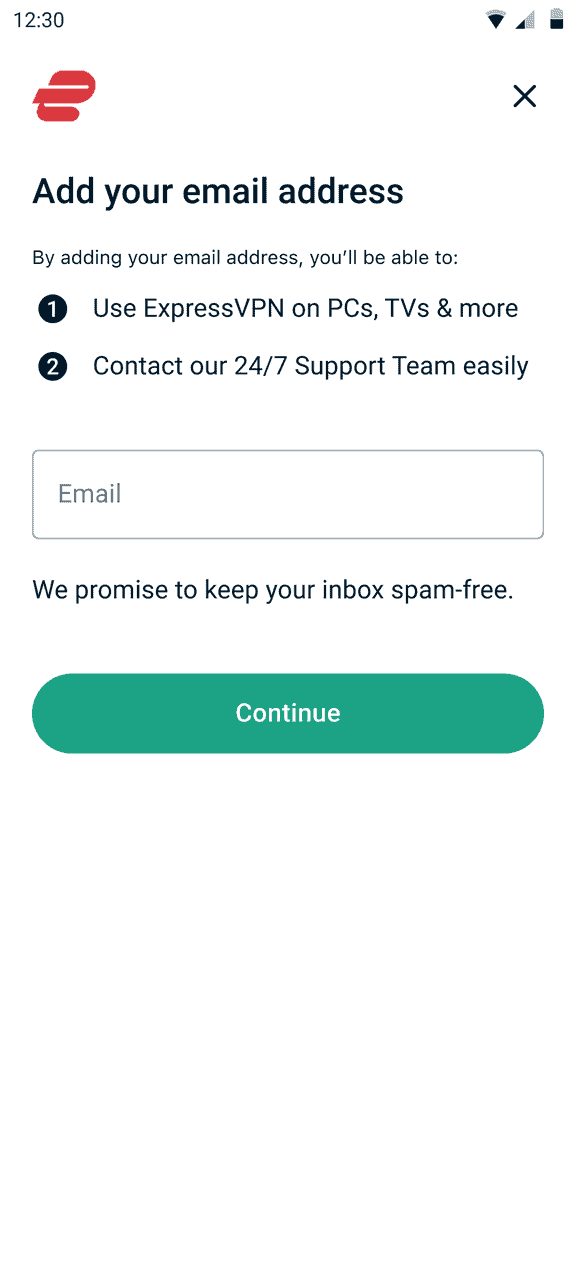
- You can also add your email address later. Leave the email address field blank, then tap Continue > Continue without email.
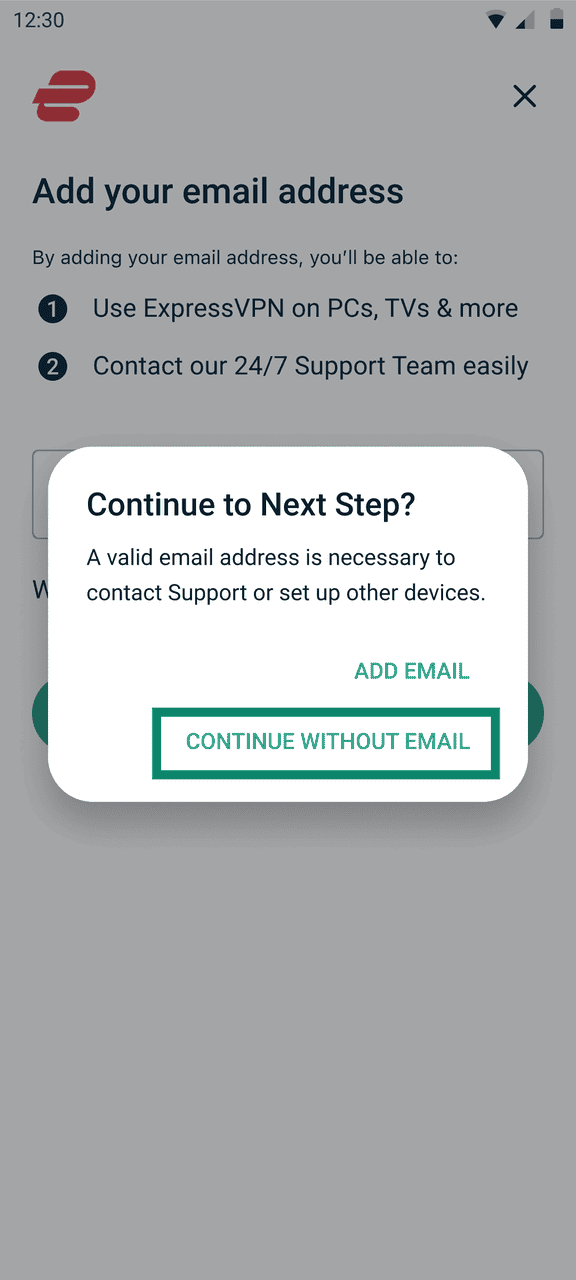
- You can also add your email address later. Leave the email address field blank, then tap Continue > Continue without email.
- Back in the app, you’ll see the setup screen. Tap OK and follow the on-screen prompts to finish setting up the app.
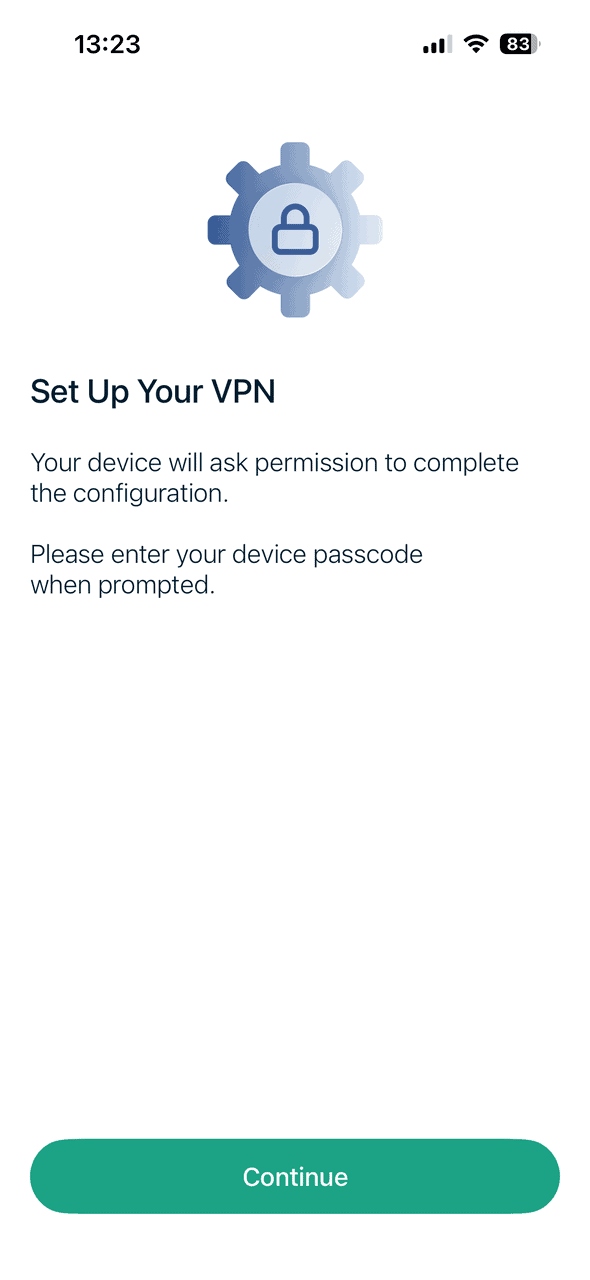
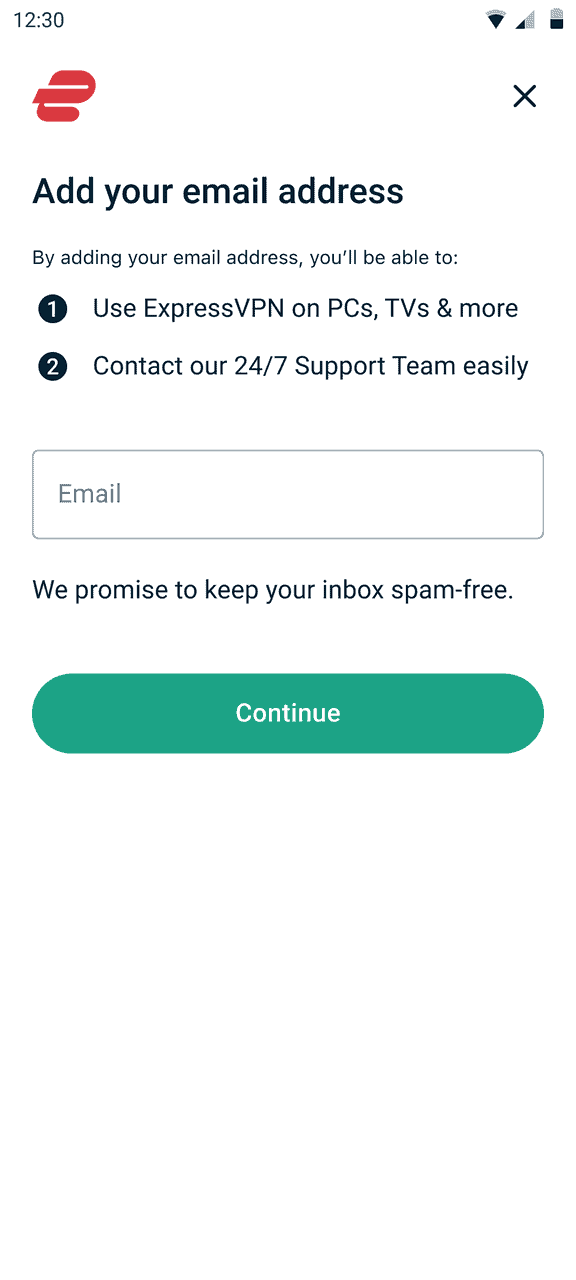
For next steps on getting started with ExpressVPN, read our guide on setting up and using the Android app.
2. What to do if you skipped the initial account setup
If you dismissed the initial account setup and didn’t add your email, you can easily add the address later in the app. The steps are the same on iOS and Android.
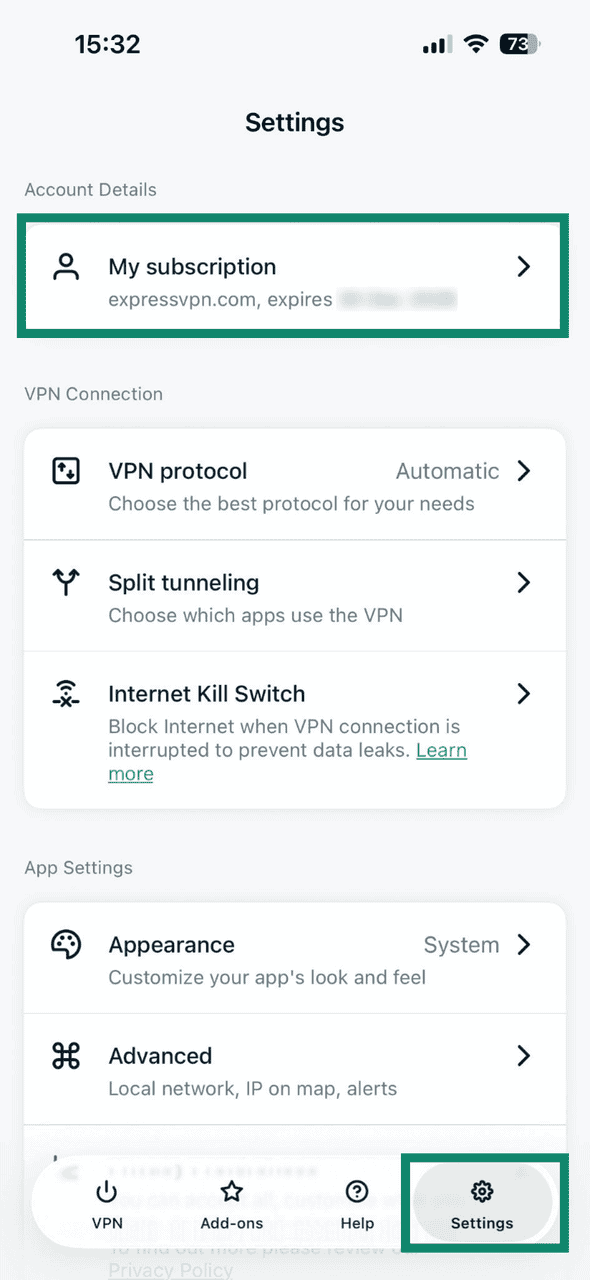
- In the ExpressVPN app, go to Settings and tap My subscription.
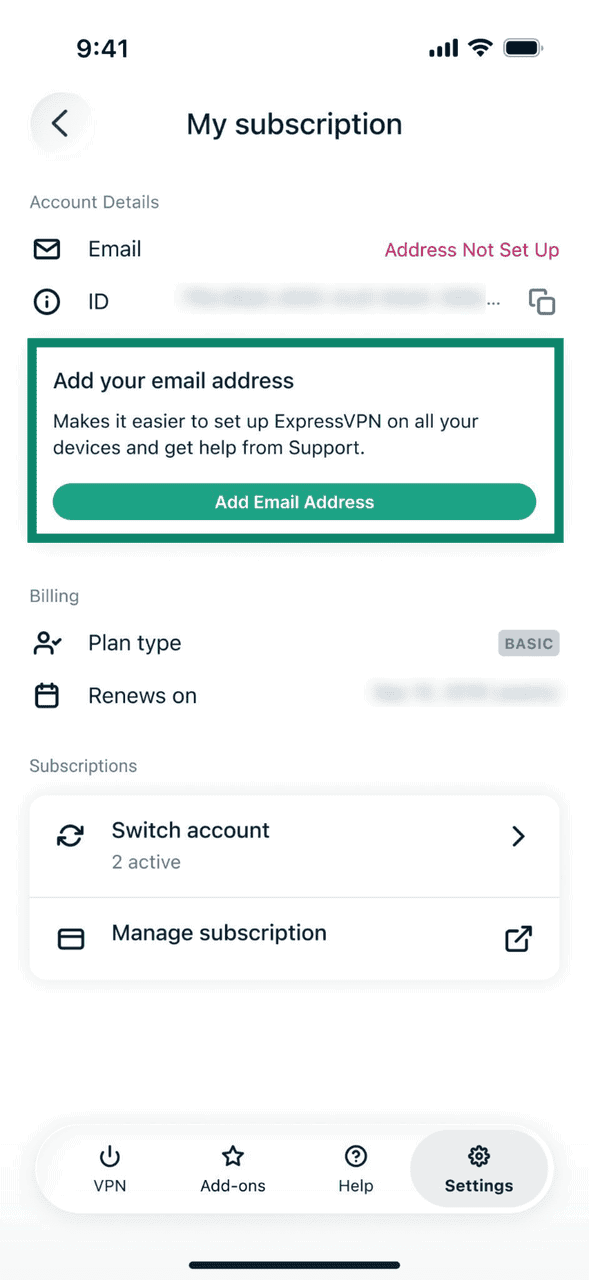
- Tap Add Email Address.
- Tap Confirm.
- A confirmation pop-up saying “Email Updated” will appear. Tap OK.
- You’ll receive a confirmation email. Follow the instructions in the email to complete your account setup.
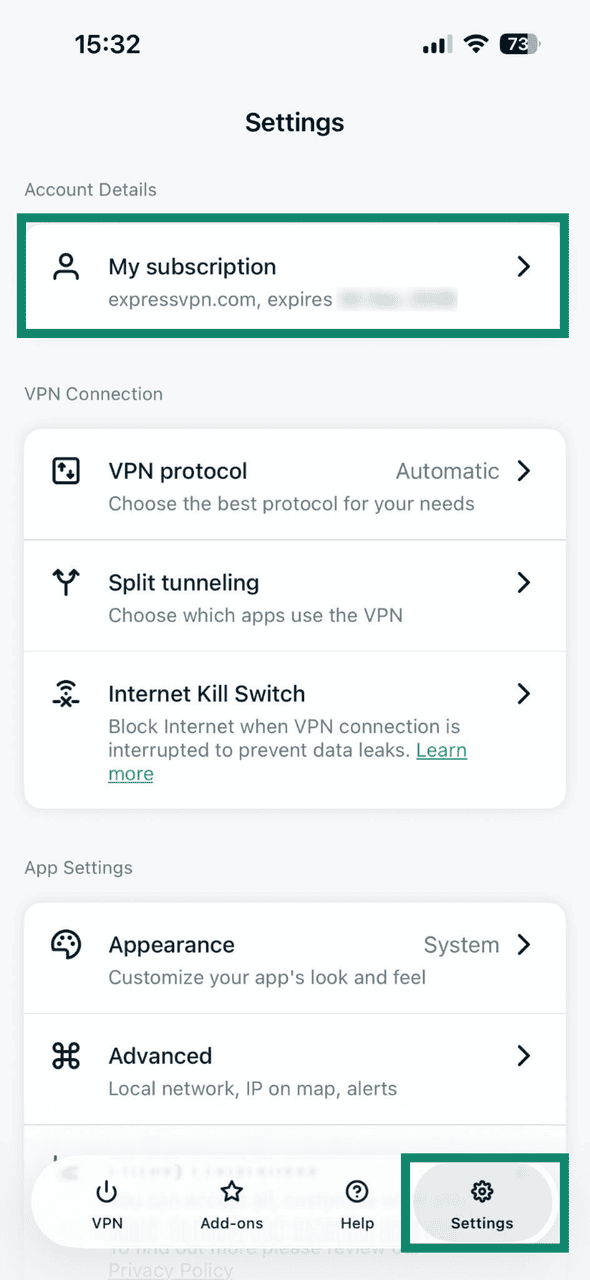
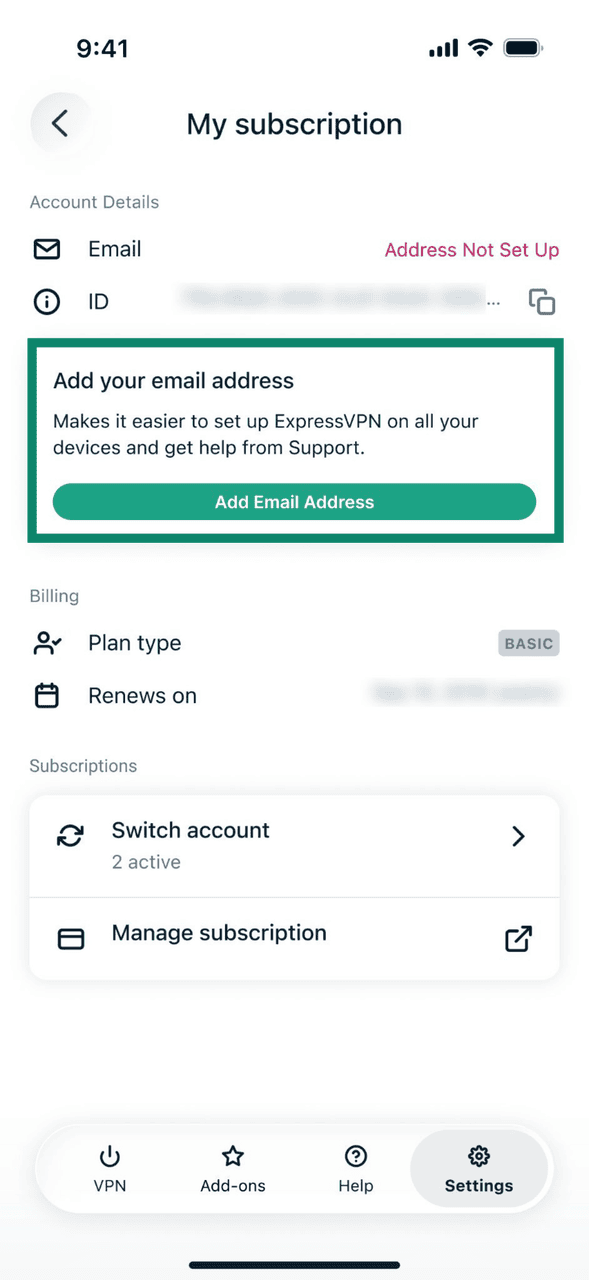
If you don’t see the Add Email button, you may already have an email address and account set up. To check:
- Go to Settings > My subscription.
- Check if there is an email address next to the Email field. If there is an eye icon, tap it to reveal the email address associated with your account.
If you still can’t locate your email address or add one to your account, please contact the ExpressVPN Support Team for immediate assistance.
3. What to do if your subscription isn’t showing in the app
If you’ve switched to a new device, you can restore your existing subscription without purchasing again.
- Open the ExpressVPN app and tap Get ExpressVPN.
- On the subscription screen, tap Restore Purchase.
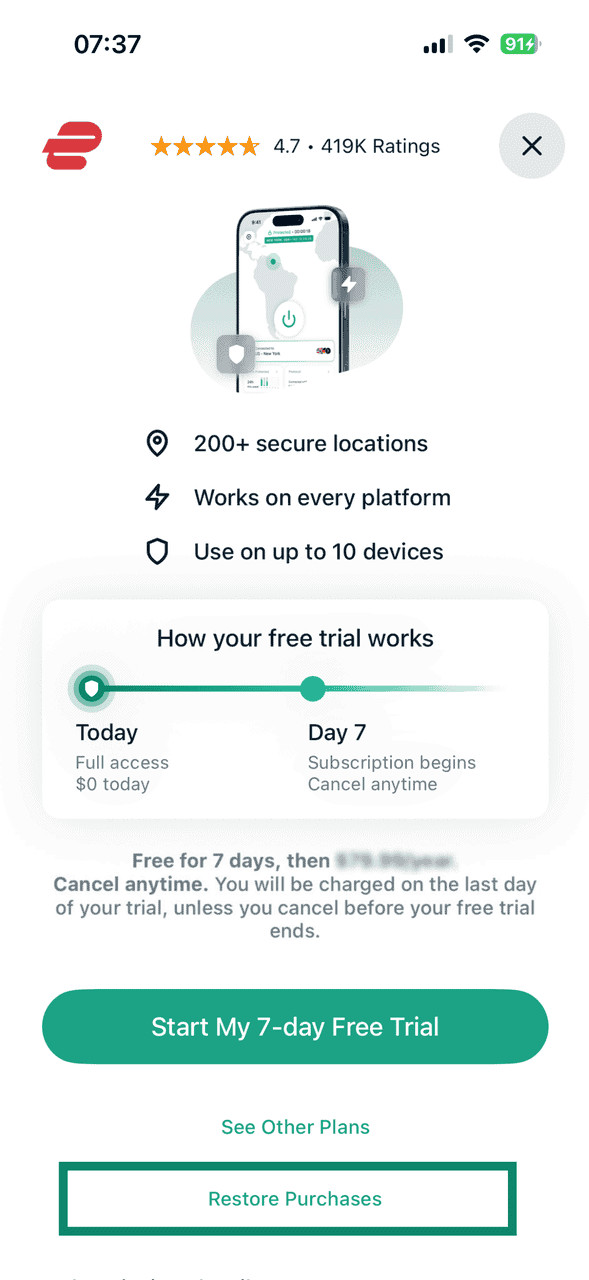
- The app store will check your purchase history and restore your subscription automatically.
Need help? Contact the ExpressVPN Support Team for immediate assistance.
How to use your subscription on other ExpressVPN apps and services
After setting up your account, you can use the same email address to sign into your ExpressVPN+ dashboard. There, you can see what’s included with your subscription, find setup instructions, and manage your account.
You’ll be able to use the same account credentials to sign into the other tools and features included with your subscription, including: ExpressMailGuard and ExpressAI.
Learn more in our guides to what’s included with each ExpressVPN subscription and how to use the ExpressVPN+ portal.
Need help? Contact the ExpressVPN Support Team for immediate assistance.