 Celebrate with up to 80% off
What is firmware? A beginner-friendly guide to the code inside your devices


Every time a device powers on, a small layer of software begins running before the operating system starts. This software is known as firmware, and it exists in almost every modern electronic device.
Most people never interact with firmware directly, but it affects everything from how your devices start up to how securely they operate and whether they receive important bug fixes and security patches.
What is firmware?
Firmware is a type of low-level software embedded into hardware devices that provides the instructions required for hardware to initialize, start up, and perform basic operations.
Often described as “software for hardware,” firmware operates close to the hardware layer and runs before the operating system or applications load. It works in the background to ensure the device functions correctly and can communicate with other hardware components.
How does firmware work?
When a device turns on, firmware performs a sequence of steps that get the hardware into a working state before anything else runs. These can include:
- Initializing the processor and memory.
- Checking and setting up hardware components.
- Configuring essential system settings.
- Starting basic device functions (like display, storage, or networking).
- Loading or handing control to the operating system.
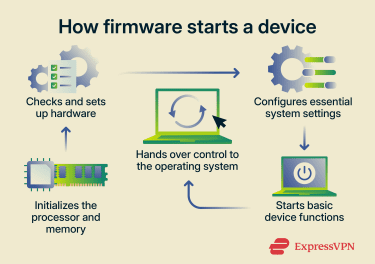 To perform these tasks, firmware communicates directly with hardware components.
How firmware communicates with hardware components
Firmware communicates directly with the hardware components by sending and receiving low-level instructions. For example, firmware may tell a device component how to initialize, when to start working, or how to respond during startup.
Hardware components can communicate with firmware if an event has occurred that requires immediate attention. This communication helps the system coordinate hardware functions before the operating system takes over.
Where is firmware stored
Firmware is generally stored inside the hardware device it controls, and it stays there even when the power is turned off.
Depending on the device and its design, firmware may be stored in different types of non-volatile memory:
- Read-Only Memory (ROM): In this case, firmware is written during manufacturing and normally cannot be changed afterward. This makes it very stable, but also inflexible, since updates are not possible in the usual way.
- Electrically Erasable Programmable ROM (EEPROM): This allows stored data to be rewritten using electrical signals, so firmware can be updated without replacing hardware. However, it is relatively slow and is usually used for smaller amounts of data.
- Flash memory: It allows firmware to be erased and rewritten in larger blocks, which makes updates practical.
In modern practice, firmware is almost always stored in flash memory, but the location of that memory depends on the device.
- On modern computers, firmware such as the Basic Input/Output System (BIOS) or Unified Extensible Firmware Interface (UEFI) is stored in flash memory chips on the motherboard. This is the standard approach today because it allows firmware updates.
- On routers, firmware is also stored in onboard flash memory, since the device needs to keep its system software permanently while allowing updates when needed.
- On phones and most Internet of Things (IoT) devices, firmware is stored in internal flash memory built into the system-on-chip or nearby storage chips, depending on the design of the device.
- On devices like solid-state drives (SSDs) or graphics cards, firmware is stored in flash memory directly inside the device itself, since those components need their own internal control software to operate independently.
Firmware vs. software
As previously mentioned, firmware is a type of software. Software is a broad term that covers many categories. To understand how firmware differs, it helps to compare it to the most common types of software:
Firmware vs. application software
Application software is what most people interact with daily. These are programs like web browsers, messaging apps, word processors, and games. They are designed to run on top of an operating system, such as Windows, macOS, iOS, or Android, and can be installed, updated, or removed easily.
Firmware, on the other hand, generally runs without needing an operating system underneath it. Its job is to make the hardware functional in the first place. For example, firmware controls how a keyboard sends signals, how a router manages network traffic, or how a storage device reads and writes data.
Firmware vs. system software
System software is the layer that sits between applications and hardware, and its main job is to manage the entire system. The most important example of system software is the operating system. It controls how hardware resources are shared between programs, manages files, handles security, and provides services that applications rely on. Without system software, normal applications would have no stable environment to run in.
Firmware operates below system software in the hierarchy. Only after the firmware finishes the setup process does it hand control over to the operating system. In simple terms, firmware prepares the machine to run, while system software keeps it running.
Firmware vs. device drivers
Device drivers are software components that allow the operating system to communicate with specific hardware devices. Every piece of hardware, such as a printer, graphics card, or network adapter, needs a driver so the operating system knows how to send it instructions in a language it understands. Drivers essentially act as translators between the operating system and the hardware.
Firmware is different because it exists inside the hardware itself. It controls how the device behaves internally, regardless of what operating system is being used. For example, a printer’s firmware determines how ink is applied to paper, how sensors detect paper placement, and how the device handles errors. The driver simply tells the printer what to do from the operating system’s perspective.
Types of firmware
Firmware is commonly described based on where it operates in a system and what role it performs. In practice, firmware is usually grouped into the following categories: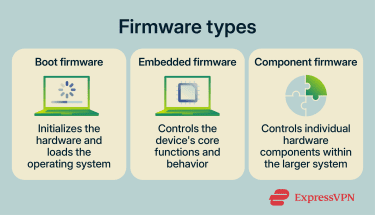
Boot firmware (system firmware)
Boot firmware is the first software that runs when a device is powered on. Its primary role is to initialize and test the hardware components and prepare the system to load the operating system.
In most computers, this role is performed by BIOS or modern UEFI firmware. Boot firmware resides in non-volatile memory, such as flash memory on the motherboard, and is executed directly by the hardware at startup before any operating system is active.
Embedded firmware (device firmware)
Embedded firmware is the most common form of firmware and exists in virtually all electronic devices. It’s embedded within hardware products and is responsible for controlling the device’s core functions.
Embedded firmware manages how the device behaves at a functional level, such as handling inputs, processing data, controlling sensors, and managing communication interfaces.
It’s typically stored in flash memory and can often be updated by manufacturers to improve performance, fix bugs, or add features.
Component or subsystem firmware
Component firmware exists within individual hardware components that are part of a larger system. These include devices such as graphics processing units (GPUs), SSD controllers, network interface cards, audio chips, and other dedicated processors.
This firmware controls the internal operation of the component itself, such as data processing, performance optimization, error handling, and communication with the main system processor. While these components may perform internal tasks independently, they still operate as part of a coordinated system managed by the central processing unit (CPU) and operating system.
Component firmware is also typically stored in flash memory and can be updated by manufacturers.
Common examples of firmware
Firmware is found in almost every modern electronic device, including computers, smartphones, routers, cars, and smart home systems. The examples below show the most common places where firmware is found in real-world devices.
Firmware in smartphones and computers
Computers rely on system firmware like the BIOS or UEFI. Smartphones, on the other hand, use specialized bootloaders designed specifically for mobile hardware to perform this initialization.
In smartphones, firmware exists across multiple hardware components, where each component may have its own embedded firmware. This includes subsystems such as power management units, cameras, sensors, and wireless radios (Wi-Fi, Bluetooth, and cellular). Together, these firmware components ensure that the hardware operates correctly and communicates properly with the operating system.
Firmware in routers and smart home devices
Routers and IoT devices rely heavily on embedded firmware to function. In routers, this firmware manages multiple system functions such as networking, wireless communication, device control, and system configuration.
Smart home devices such as thermostats, smart locks, and lighting systems use embedded firmware to enable connectivity, remote control, scheduling, and automated operation.
Firmware in vehicles
Modern vehicles use firmware extensively across many electronic control units (ECUs). Each ECU typically runs its own embedded firmware to control specific systems such as engine management, braking, steering assistance, battery management in electric vehicles, and driver assistance systems.
Advanced automotive features like adaptive cruise control, lane keeping assistance, and autonomous driving rely on coordinated firmware across multiple subsystems, often working in real time with sensors such as radar, cameras, and LiDAR.
Firmware also supports infotainment systems and vehicle connectivity, allowing communication with external networks for updates and smart features.
What is a firmware update?
A firmware update is a new version of the firmware file released by the manufacturer.
How firmware updates are performed
Firmware updates are delivered in a few different ways, depending on the device and settings:
- Manual download: The user downloads the firmware file from the manufacturer's website and installs it using a USB drive, SD card, or dedicated software.
- Automatic update: The device checks for and downloads firmware updates on its own. Depending on the device, installation may be automatic or require confirmation from the user.
What happens if firmware isn’t updated?
Regular firmware updates are important because they keep the core software of a device secure, stable, and efficient. When firmware isn’t updated, problems tend to build up over time rather than appear all at once. The main issues include: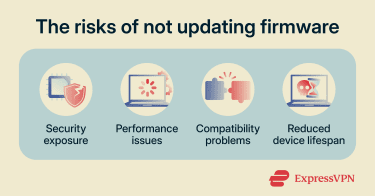
- Security exposure: Older firmware may contain known vulnerabilities that attackers can exploit, especially in internet-connected devices. This can lead to a data breach or compromised data.
- Performance issues: Devices may become slower, less responsive, or unstable due to unresolved bugs that were already fixed in newer versions. This can sometimes result in crashes or unusual behavior.
- Compatibility problems: As operating systems, apps, and connected devices evolve, outdated firmware may struggle to keep up, causing features to stop working properly or devices to fail to connect.
- Reduced device lifespan: Without updates, the device gradually falls behind modern standards, making it less efficient and eventually less practical to use.
Is it safe to update firmware?
Yes, in most cases. Problems typically occur when an update is interrupted mid-install, when the wrong firmware file is applied to the wrong device model, or when firmware is downloaded from an unofficial source.
Common risks of firmware updates
The most serious outcome of a failed firmware update is a "bricked" device, which is a device that becomes non-functional because the firmware was corrupted during the update process. This can happen if:
- The update is interrupted by a power cut or disconnection mid-install.
- The firmware is designed for a different device model.
- The firmware is downloaded from an unofficial or untrustworthy source.
Less severe but more common issues that appear after a successful install can include the following:
- New bugs are introduced by the update itself.
- Feature regressions where something that previously worked stops working.
- Connectivity problems affecting Wi-Fi or Bluetooth.
- Data loss if the update fails at a critical stage.
These are recoverable in most cases, either through a follow-up update from the manufacturer or by reverting to a previous firmware version if the device supports it.
Best practices for updating firmware safely
To ensure the firmware update process runs smoothly:
- Use official sources only: Download firmware directly from the manufacturer's website. Third-party downloads may contain incorrect files or malware.
- Check the model number first: Make sure the firmware file matches your exact device model. Even similar models in the same product line can have different firmware.
- Don't interrupt the update: Keep the device powered on and connected throughout the process. For laptops or battery-powered devices, plug them in first.
- Back up your settings: For routers and network devices, export your configuration before updating so you can restore your settings if something goes wrong.
- Read the release notes: They tell you what the update fixes or changes, which helps you judge how urgent it is and whether it might affect your specific setup.
How to check your current firmware version
On some devices, firmware versions are displayed directly. On others, including iPhones, firmware is managed largely in the background, and typically appears only indirectly through system or software version information.
You can follow the steps for your devices to check what firmware version they’re running.
Windows
- Press Win + R on your keyboard. Type “msinfo32” in the command box and click OK.
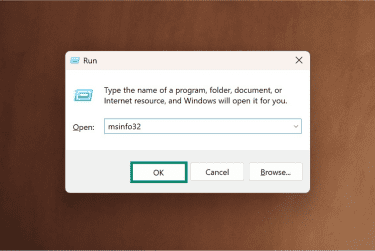
- In the System Summary panel, look for BIOS Version/Date.
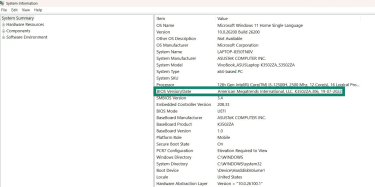
macOS
- Open the Apple Menu and select About This Mac.
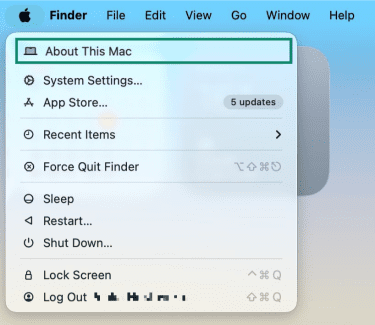
- Select More Info.

- Under the General tab, choose System Report.
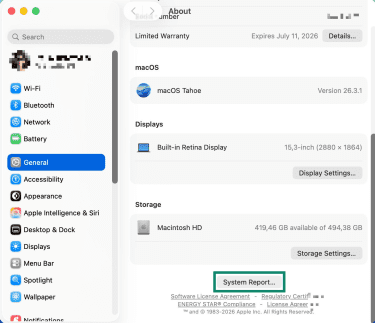
- In the Hardware panel, look for System Firmware Version.
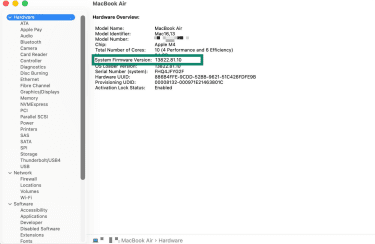
Note: On newer Apple Silicon Macs, the Boot ROM Version appears as System Firmware Version.
Android
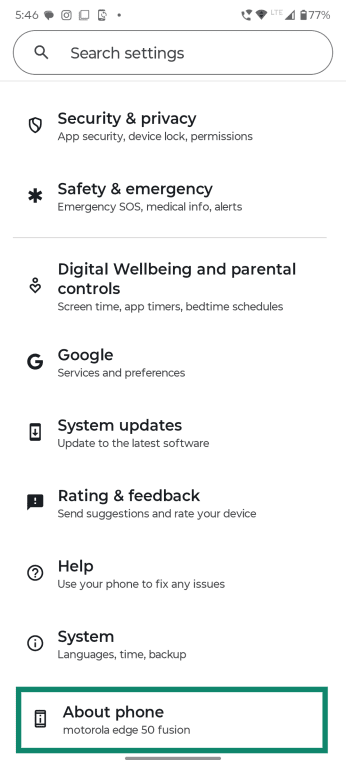
- Go to Settings and select About phone.
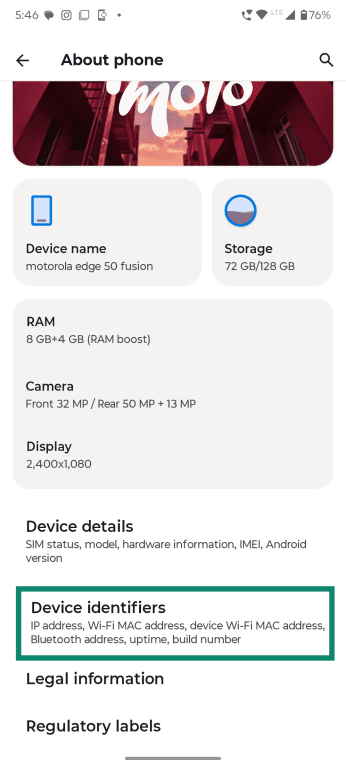
- Choose Device Identifiers or Software Information.
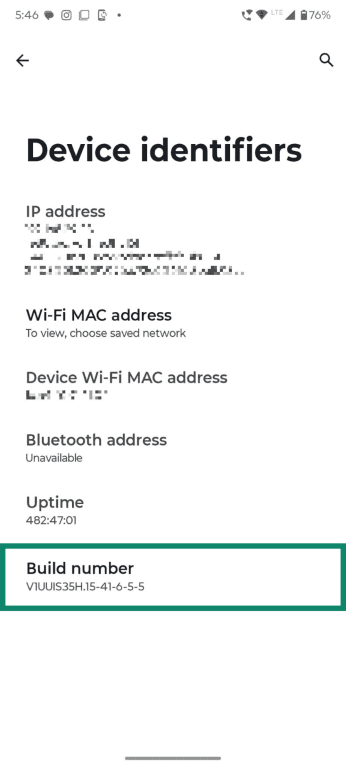
- Look for Baseband Version or Build Number.
What to do if your firmware is outdated
Go to the manufacturer's official support page and search for your exact device model. Download the latest firmware version from there and follow the installation instructions provided.
If your device supports updating directly through its interface, as most routers and smartphones do, use that method instead, as it reduces the risk of applying the wrong file.
Can firmware be vulnerable to attacks?
Firmware attacks are generally more complex and less common than ordinary malware attacks. However, they can happen and are often difficult to detect because they operate at a low level within the device. Here are a few examples:
Compromised firmware updates
Attackers may target the update process itself rather than the device directly. If they gain access to update servers, developer accounts, or distribution channels, they can inject malicious code into a legitimate firmware update. When users install it, the malware gets written directly into the device’s firmware.
Exploiting firmware vulnerabilities
Some attacks begin by finding security flaws already present in the firmware. Once exploited, these flaws can give attackers elevated control over the device. With that access, they can modify or replace parts of the firmware and establish long-term control over the system.
Physical or low-level hardware access
If an attacker has direct access to a device, they may use debugging ports or maintenance interfaces to rewrite firmware. This is more common in stolen devices or poorly secured hardware environments. Because firmware sits below the operating system, this type of access allows attackers to install code that survives resets and OS reinstallations.
Boot process manipulation
Some malware is designed to interfere with the startup sequence of a device. By inserting itself into the boot process, it loads before the operating system and security tools. This allows it to remain hidden and reload every time the device starts, making it very persistent and difficult to detect.
How devices are protected from firmware threats
In addition to regularly updating the firmware, many devices often use several security features to help protect firmware, including:
- Using Secure Boot: Secure Boot verifies that each part of the startup process is digitally signed and trusted before it is allowed to run. If anything has been altered or is not recognized, the system blocks it from loading, preventing boot-level malware from taking control early.
- Enabling Trusted Platform Module (TPM): TPM is a hardware chip that securely stores cryptographic keys used for encryption and system verification. Because it’s hardware-based, attackers can’t easily extract or modify these keys.
- Using anti-rollback protection: This prevents devices from being downgraded to older firmware versions that may contain known security weaknesses.
FAQ
Can firmware be modified by the user?
Does every device have firmware?
What should you do if a firmware update fails?
In severe cases, you may need to use recovery mode, perform a factory reset, or contact the manufacturer's support team.
Can outdated firmware slow down a device?